Frequently Asked Questions About Billing
Everything you need to know about billing and payment features of our salon booking system!
1. How can I see the current subscription and update my payment method and billing details?
All you need to do is go to Settings, Billing, Billing details, and click on Edit:
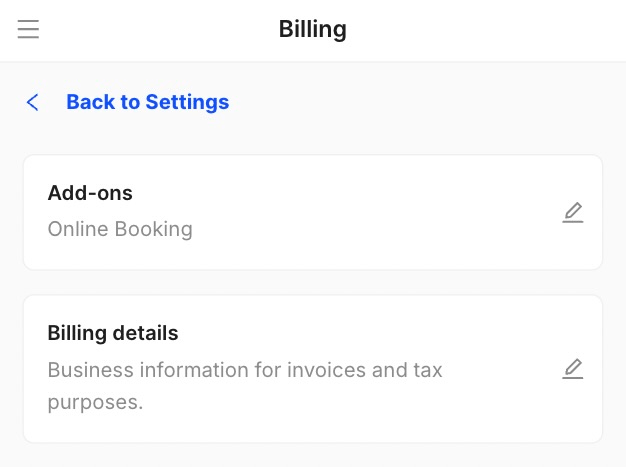
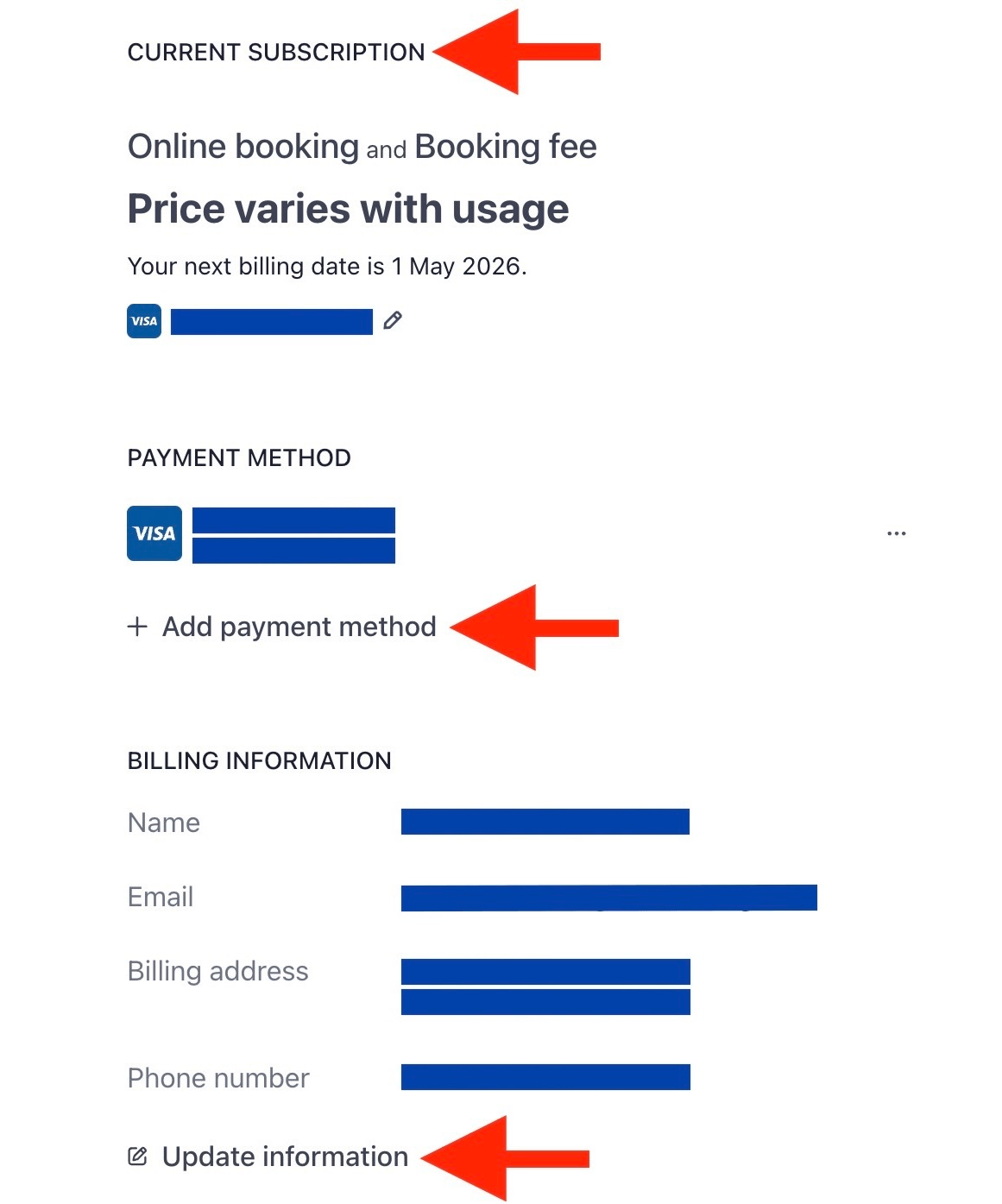
From here, you’ll be able to see your current subscription and update all the information you need:
2. How do I access my billing history or invoices?
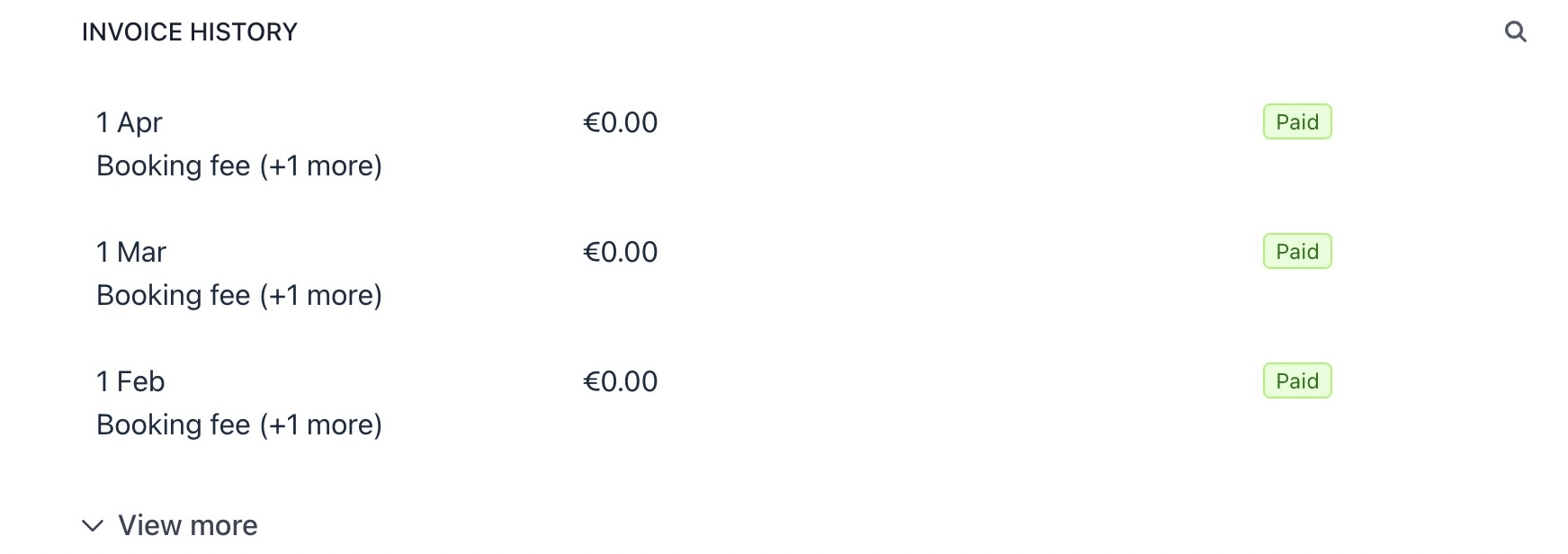
You can also see your billing history and invoices if you go to Settings, Billing, Billing details, and click on Edit:
3. How do I download my invoice?
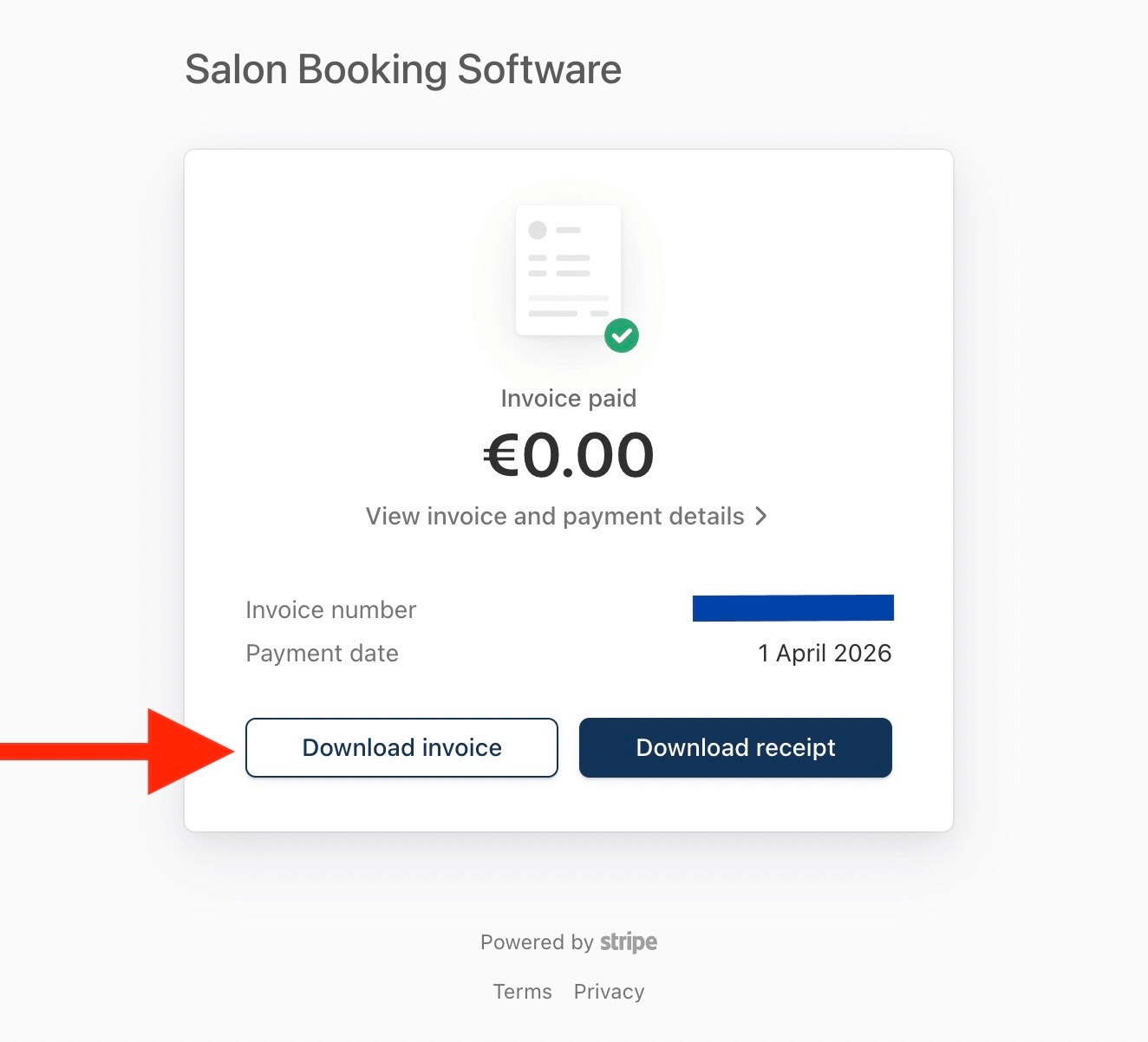
Once you’re inside the Stripe portal (the one presented at question #2), if you click on any invoice, you’ll be presented with these two options:
4. When is my payment due?
You can also check this information inside the Stripe portal. Your next billing date appears in the Current Subscription section.
5. How does the online booking fee work?
Our system is free for manual appointments, so salon owners can manage their schedule and clients in one place. This includes unlimited staff & experts. For online bookings only, clients pay a small 3.9% booking fee at checkout, keeping the platform free for beauty professionals.
If the client pays online, the 3.9% fee is deducted automatically. You will receive 100% of your listed service price, minus card fees.
If the client pays in person, you will collect the amount, including the small 3.9% fee. The fee will then be charged to your card at the end of the month. You can always check all this information from Billing details.
6. Why was my payment declined?
Here are some things you can do if your payment is declined:
1. Check if you have sufficient funds
2. Check the card’s expiration date and number
3. If it’s an international card, check if it’s supported by Stripe
4. Check if this comes from the bank, as they sometimes block transactions due to fraud concerns or restrictions
If all looks good, please contact the customer support team via live chat, explain the situation, and send a quick video recording of what happens when you try to complete the payment. They’ll be able to fix any issues in no time!
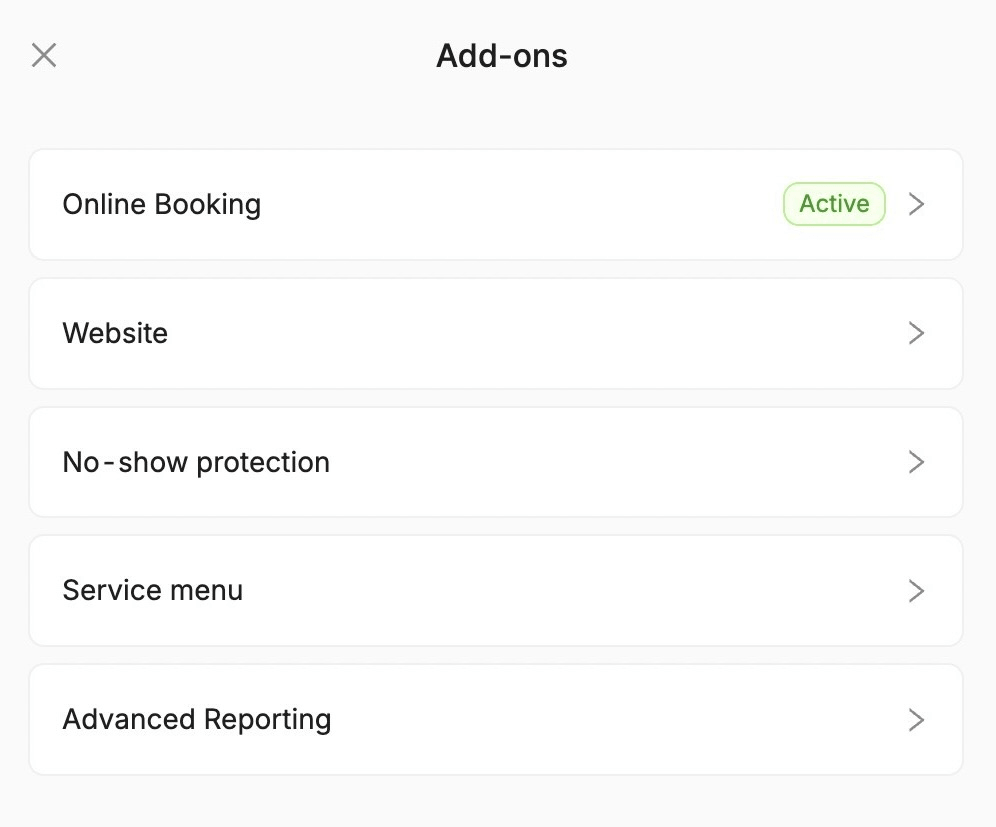
7. Where can I see what add-ons are activated?
You can check your add-ons by going to Settings, Billing, Add-ons, and clicking on Edit:
8. Who do I contact for billing support?
If you encounter any problems while using our system or have any questions about your billing, please contact the customer support team via live chat for assistance. They’re always happy to help!
Send your details - we do the rest!
We offer all you need for a thriving salon: website & logo creation, instant profile setup, 1:1 staff training payment system integration, intuitive appointment management, and more!
Start Now
TimeTailor’s salon appointment software is an all-in-one salon online booking system for freelancers and small business owners. We also optimize or create a website for your salon. This POS system allows you to take deposits and manage payments.