Frequently Asked Questions About Our Service Menu Feature
Everything you need to know about the service menu feature provided by our salon management software!
1. How can I add a new service?
To add a new section inside your salon service menu, go to Services and click Add. From there, you can choose to create a new category, service, or to import an existing service menu:
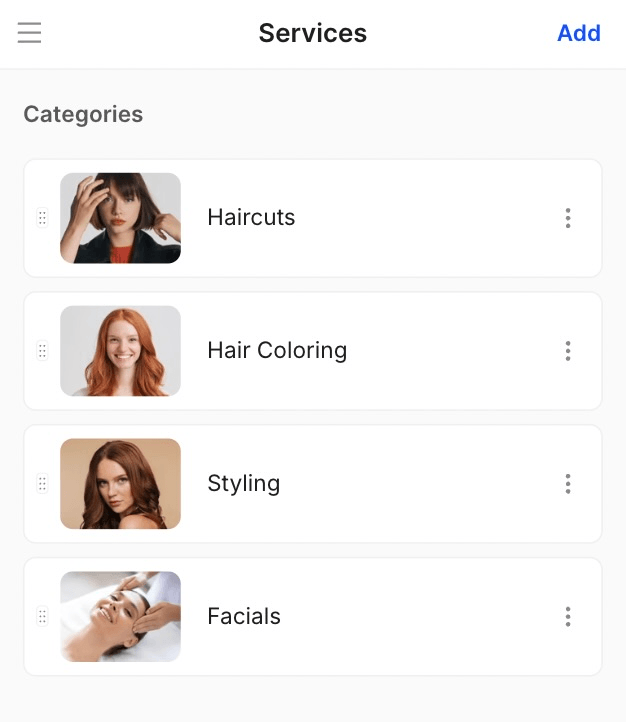
If you’re creating a category, enter its name, add an image, and select the color you’d like it to appear as in the calendar:
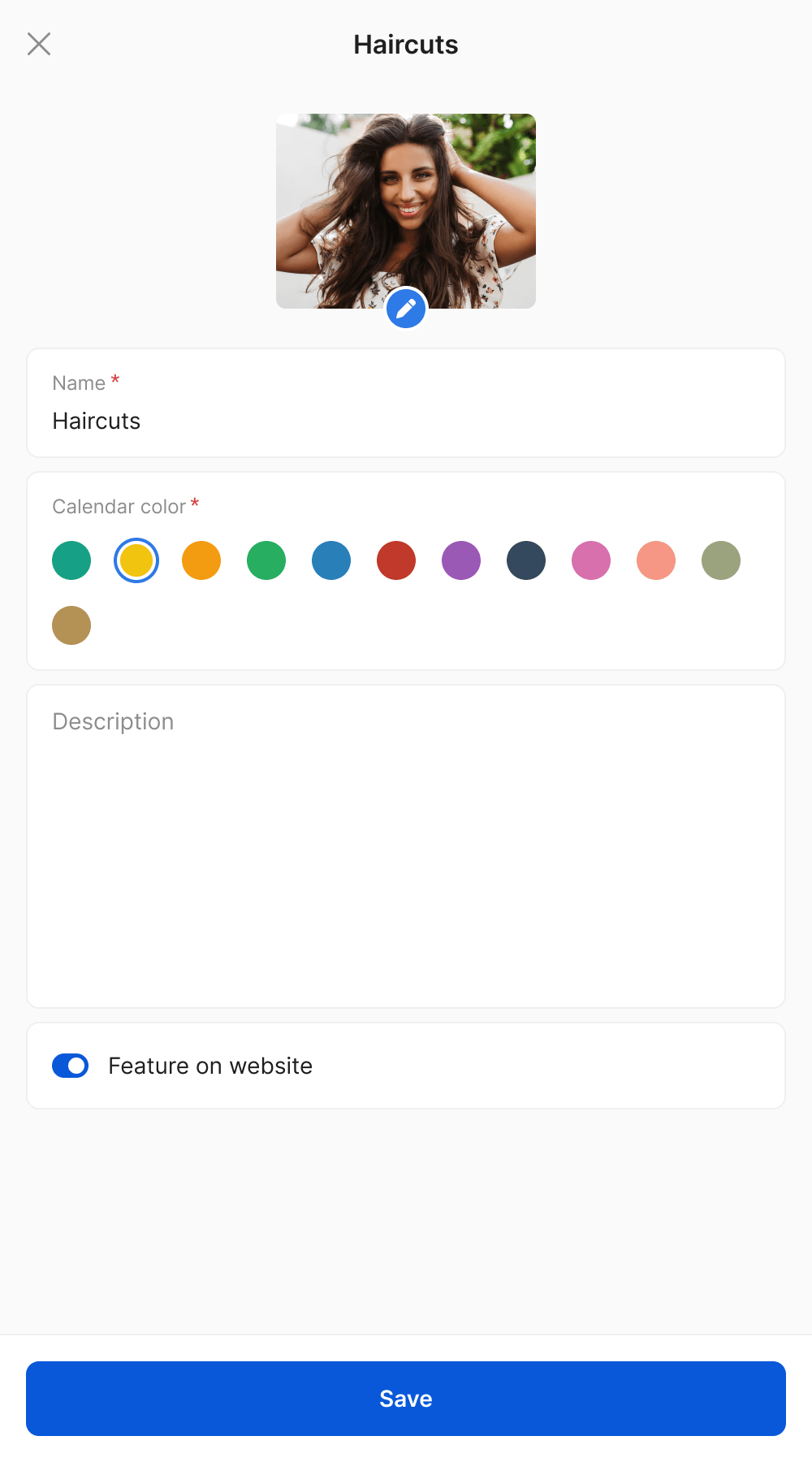
Once the category is created, open it and click Add Service to start building it:
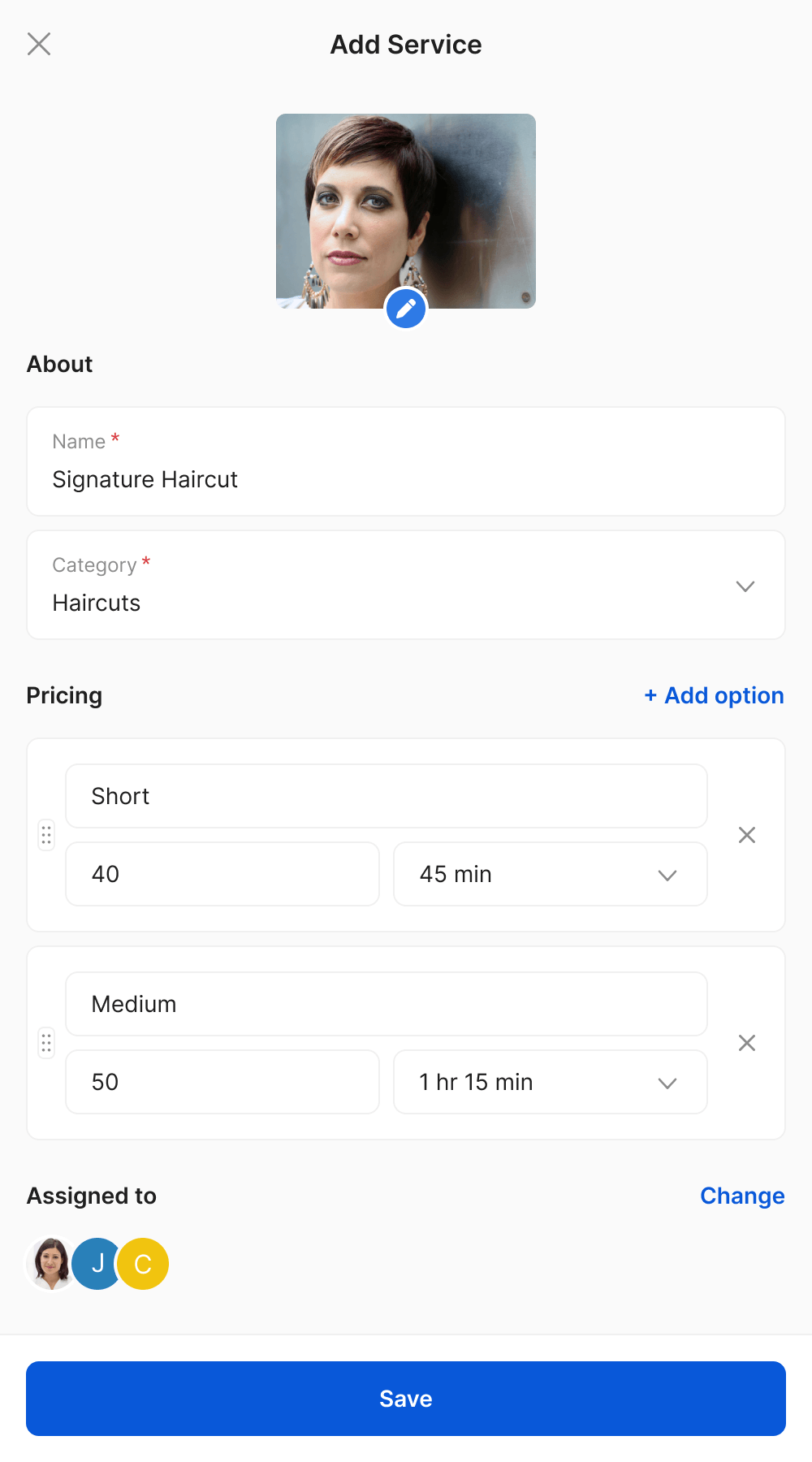
Please note that all services must belong to a category!
2. Can I categorize services (hair, nails, facials) for easy browsing?
Yes, all services must belong to a category, so customers can easily browse exactly what they need! You can create your own labels and assign the options you offer accordingly. These categories then appear on your website, inside the booking portal, and on social media!
3. How can I edit the details of a certain service?
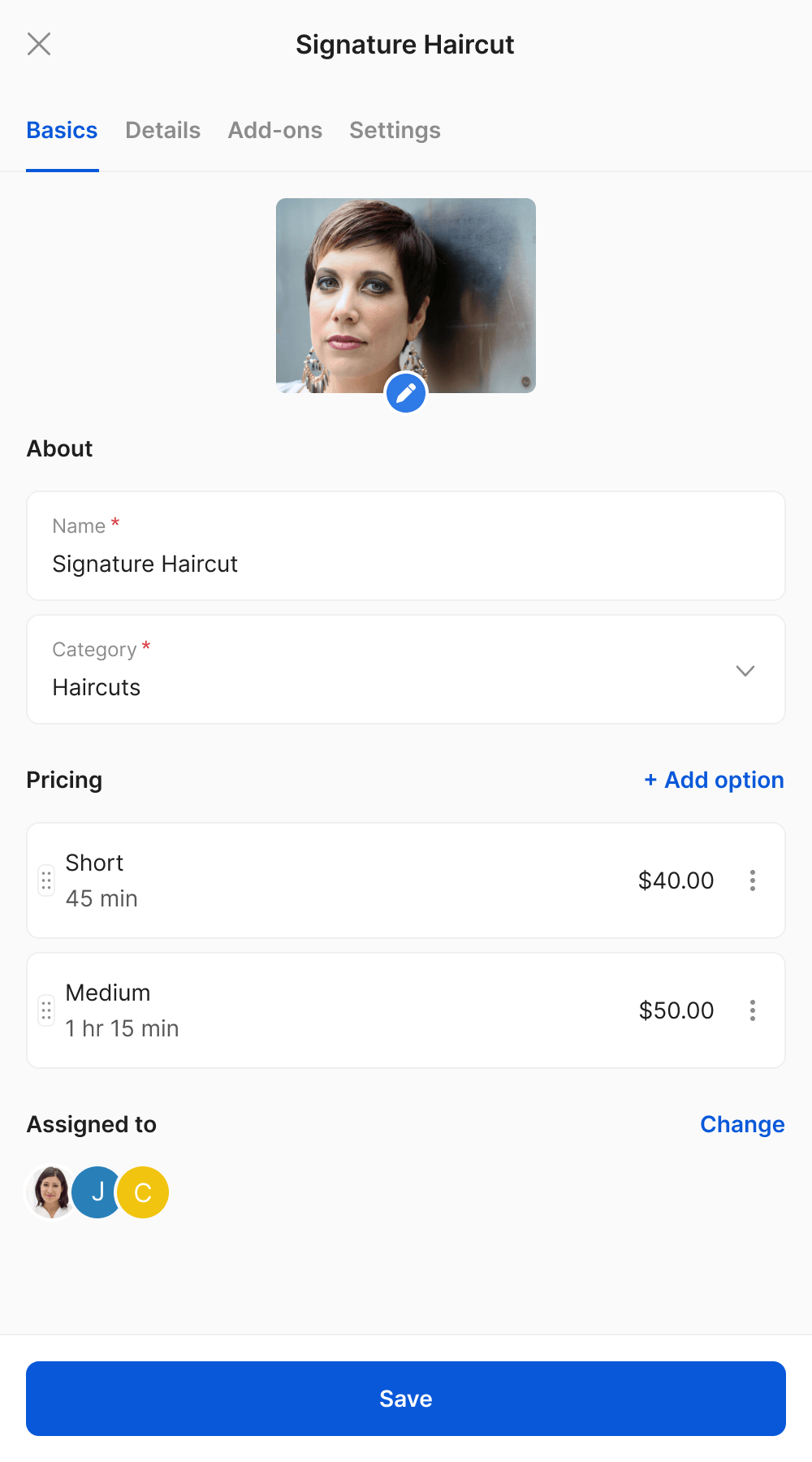
All you need to do is go to Services, open the section you want to modify, and click on the service. From here, you can change any details, such as name, pricing, duration, experts, and add-ons:
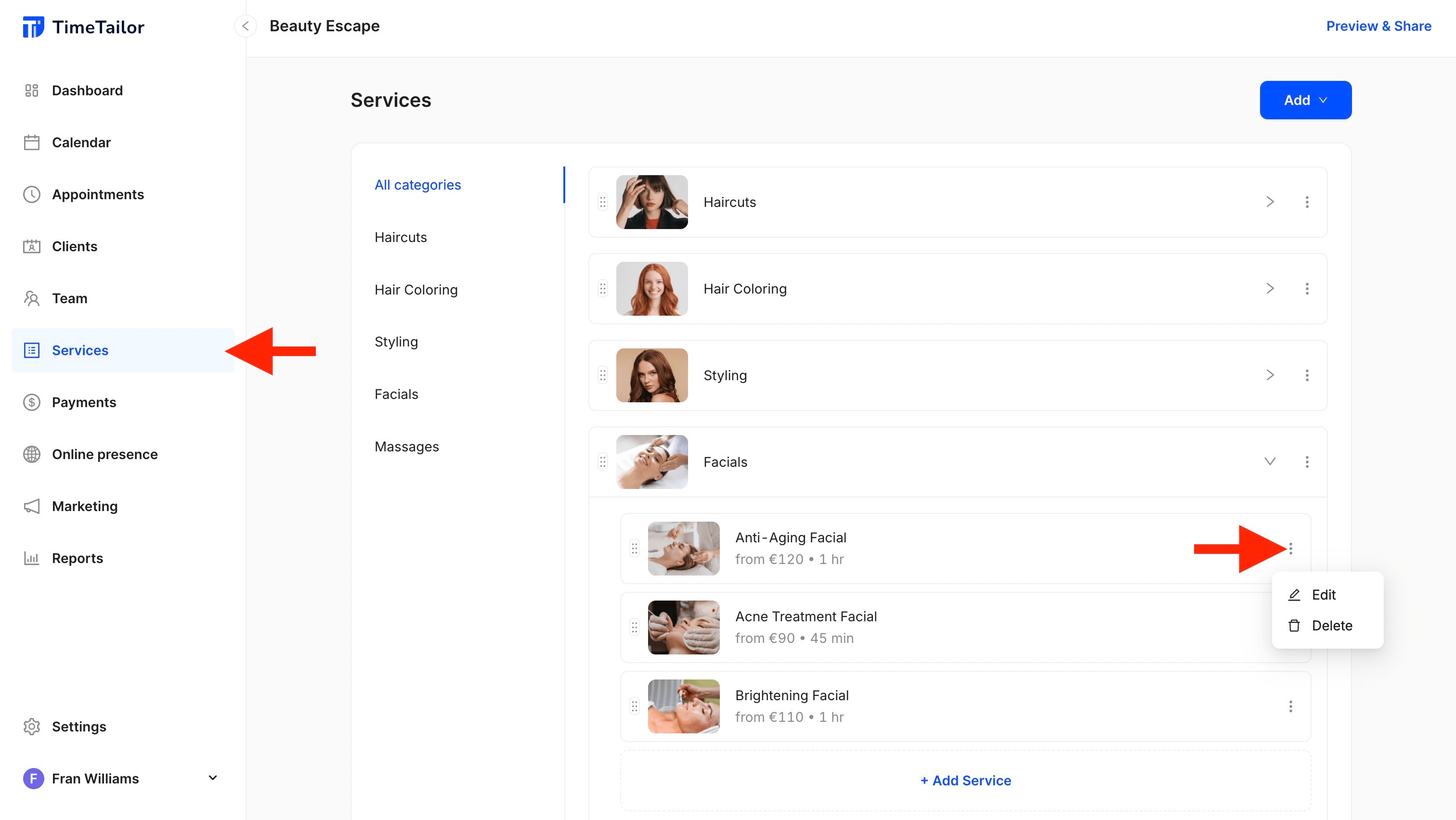
4. How can I delete a service?
You can delete a service or category by going to Services, opening the settings, and selecting Delete:
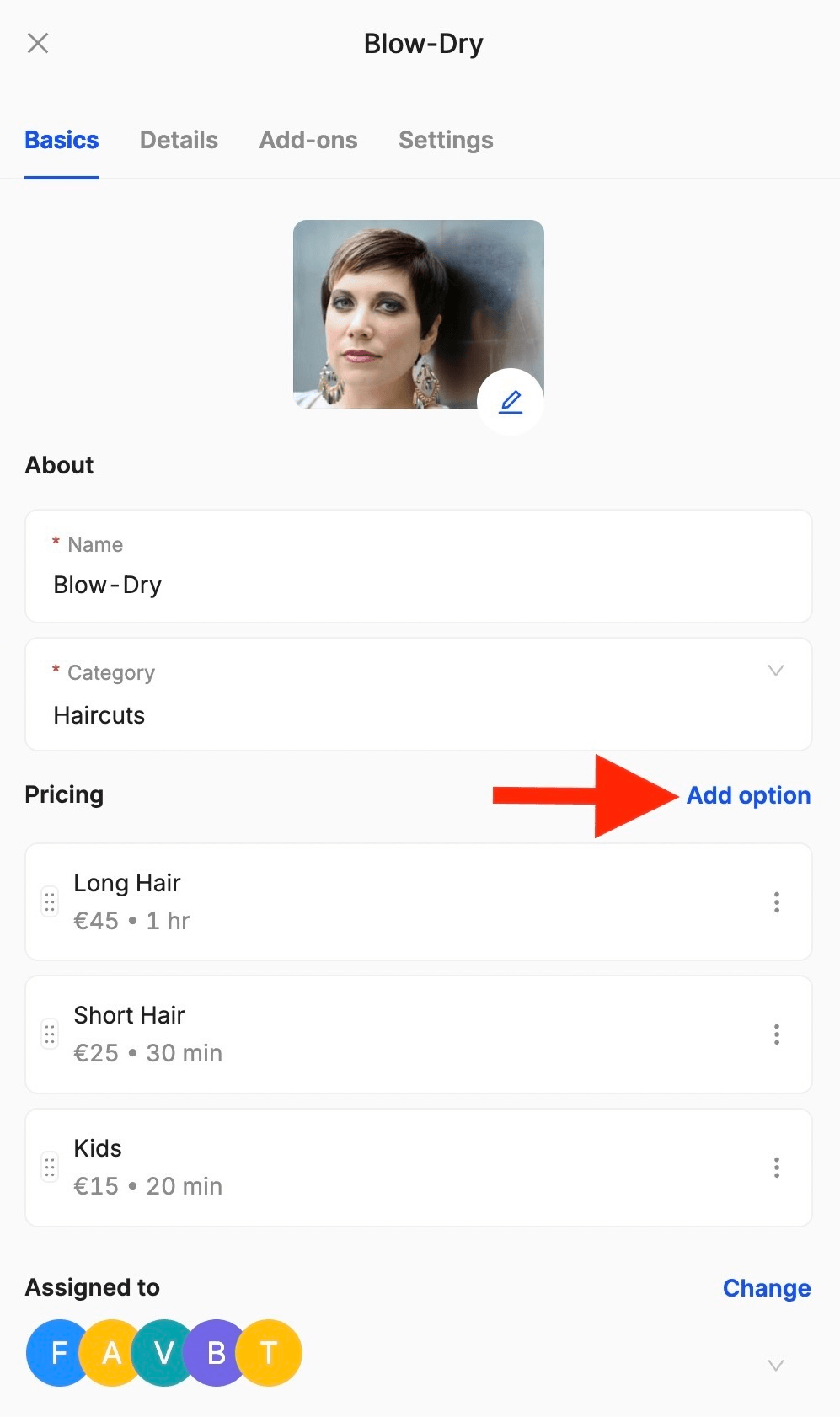
5. Can I add more options to a service that can be done in multiple ways?
Of course! Once a service has been added, you can go to the Pricing section and click Add Option to create as many variants as you need:
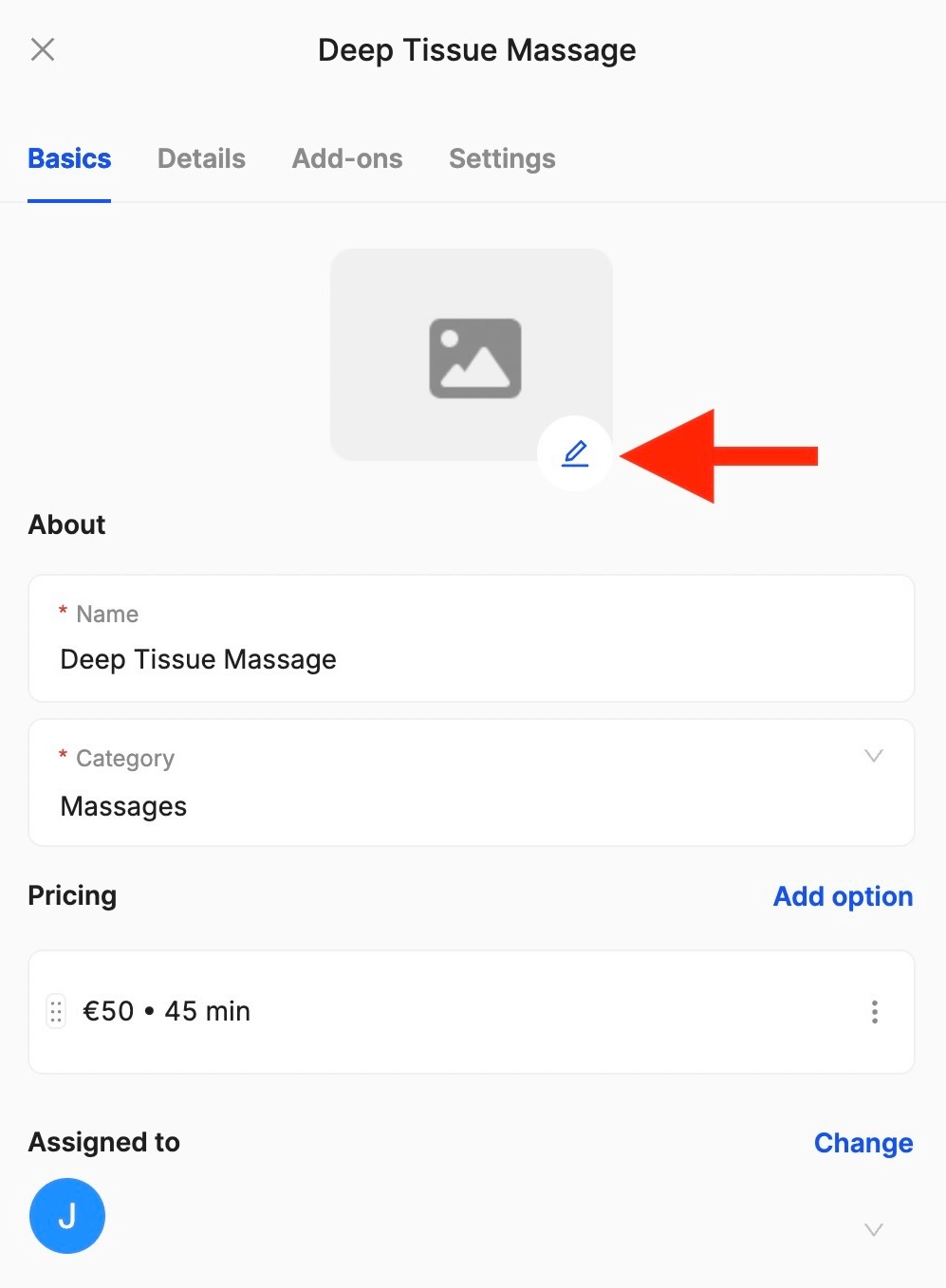
6. Can I add personal images and descriptions to the service menu?
Yes! You can always add personal descriptions and real images of your work inside the service menu, so customers know to choose the right option. You can do this in Services by clicking on the option you want to modify:
7. Can I customize the durations?
Of course! You can modify durations for any service and all its pricing options.
8. Can I promote add-ons?
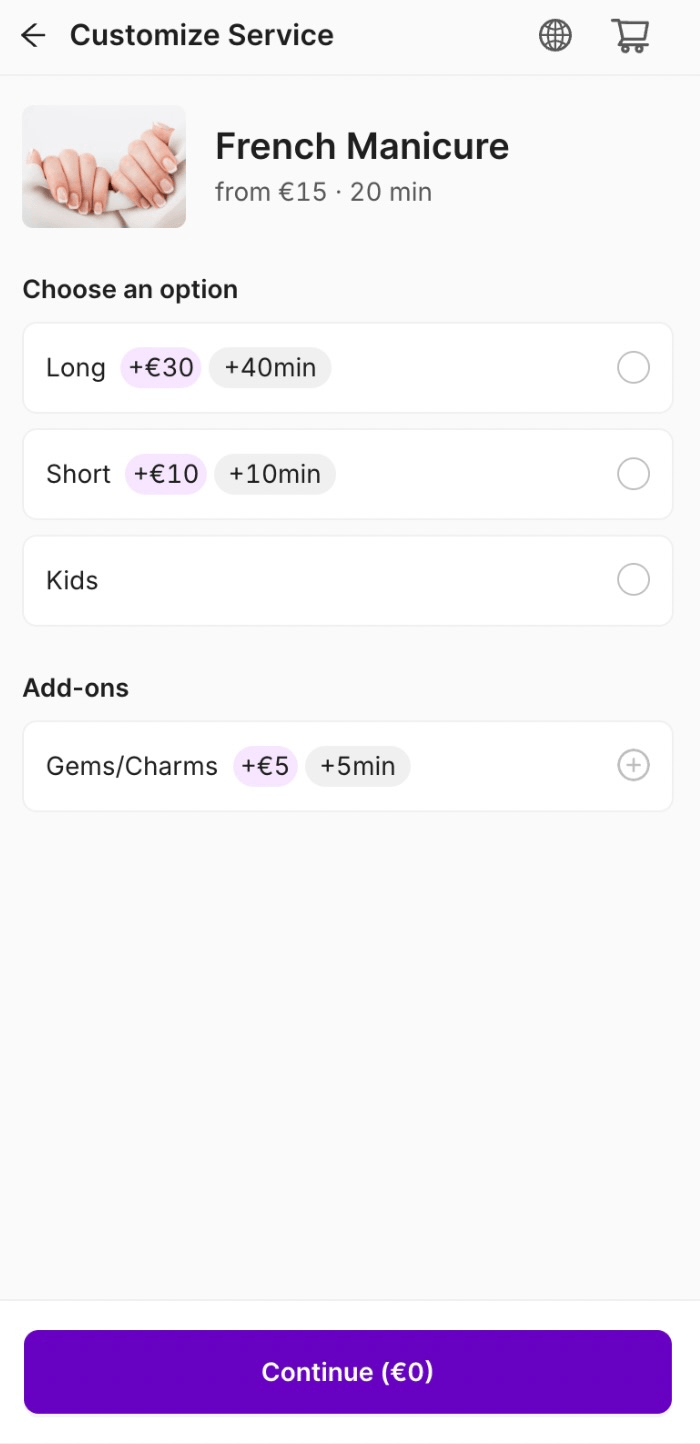
Yes! You can create custom add-ons that clients select during booking. Go to Services, select the service you want to promote add-ons for, go to Add-ons, and click on Add services to upsell:
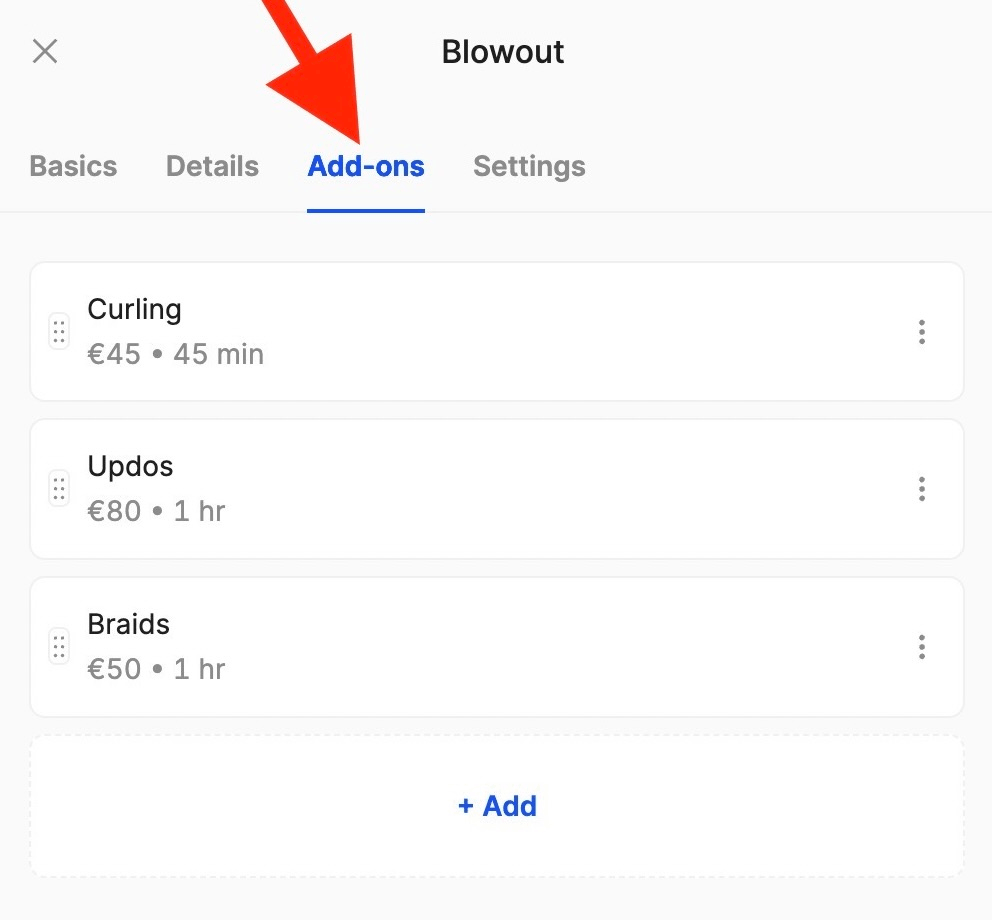
From there, select all the services you want to appear as add-ons. This is how it will look in the booking portal:
9. Can services only be available as add-ons?
Yes! If you go to Services, select an existing service, and navigate to Settings, you have the option of making the service available only as an add-on:
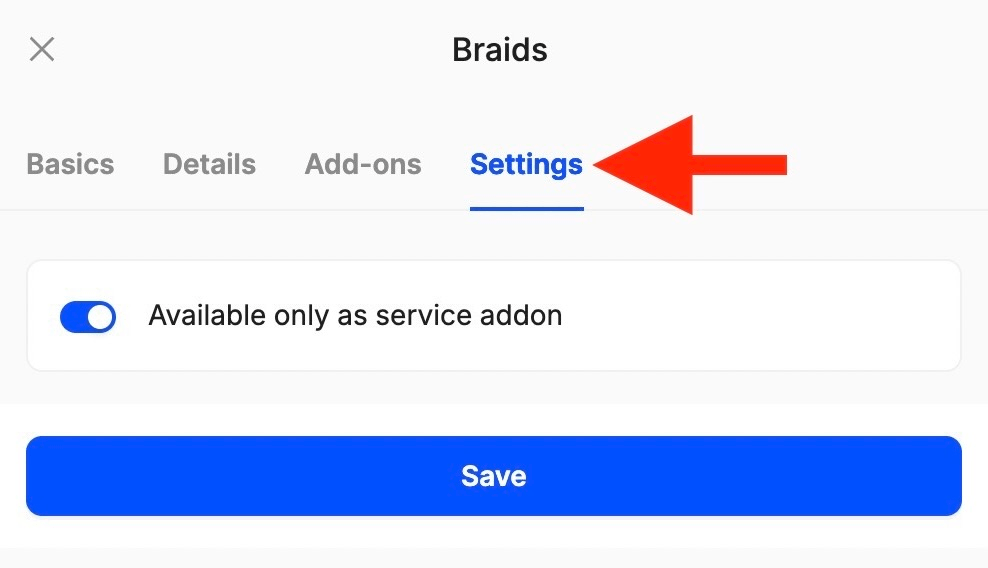
As part of the salon’s staff, you’ll be able to see it inside the service menu. Your clients, however, will only come across it when booking the appointment!
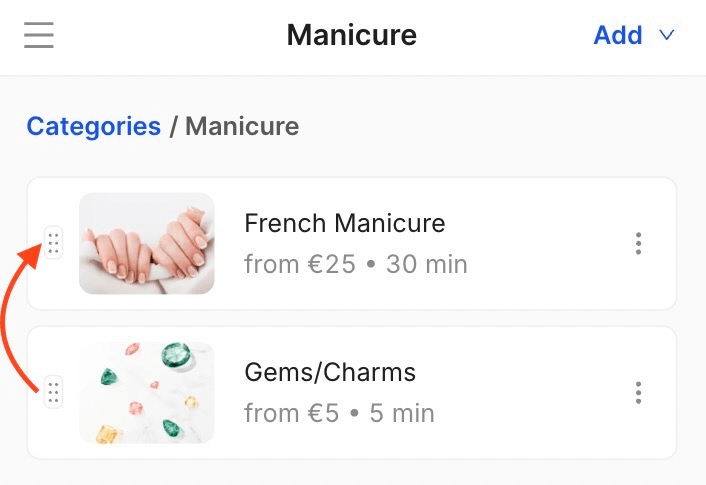
10. I added my services in the wrong order, can I move them?
Of course! You can always go to the category of your choice to drag-and-drop services as you wish:
11. Can customers choose their favorite staff member while booking?
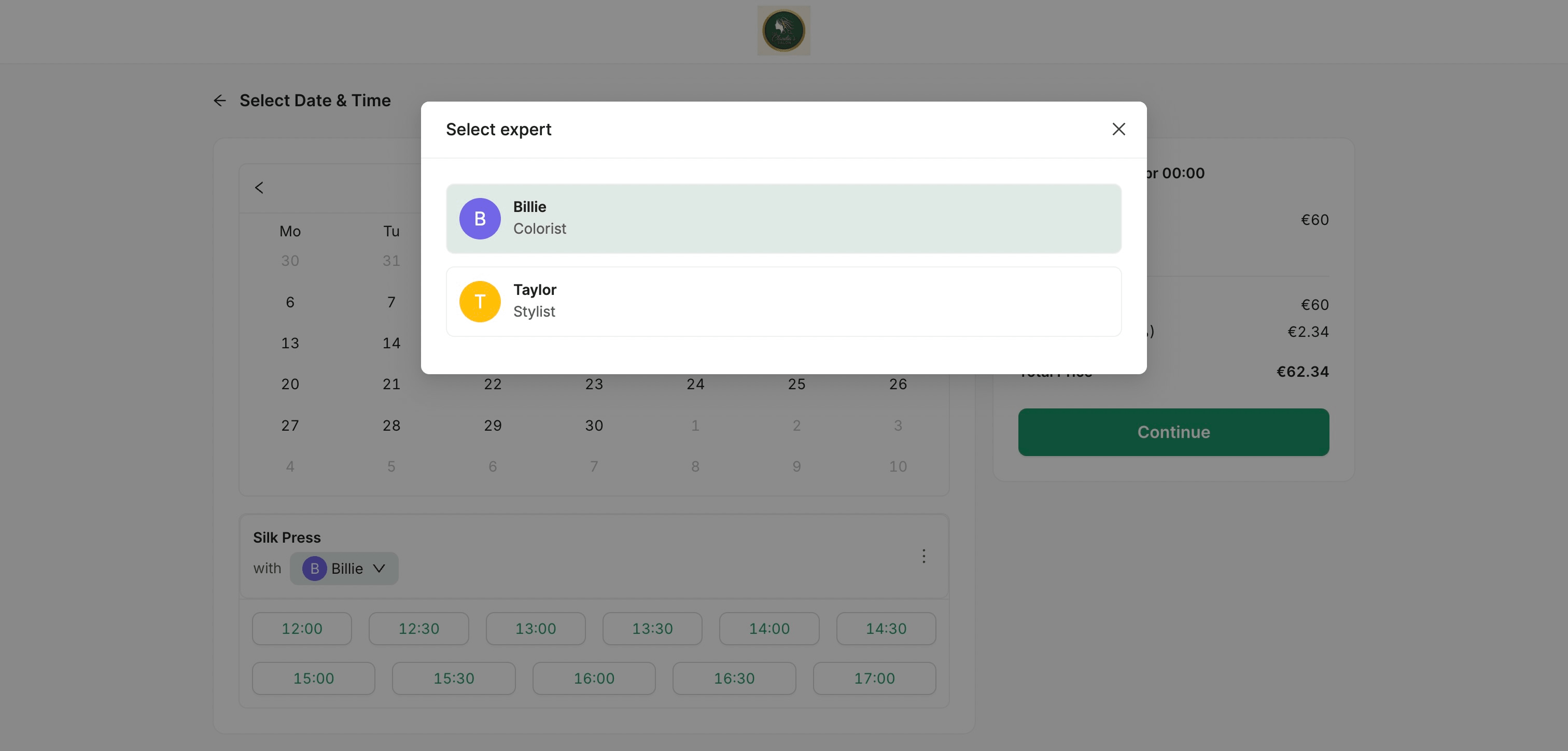
Yes! If you assign more than two experts to a service, customers will have the option of choosing between them:
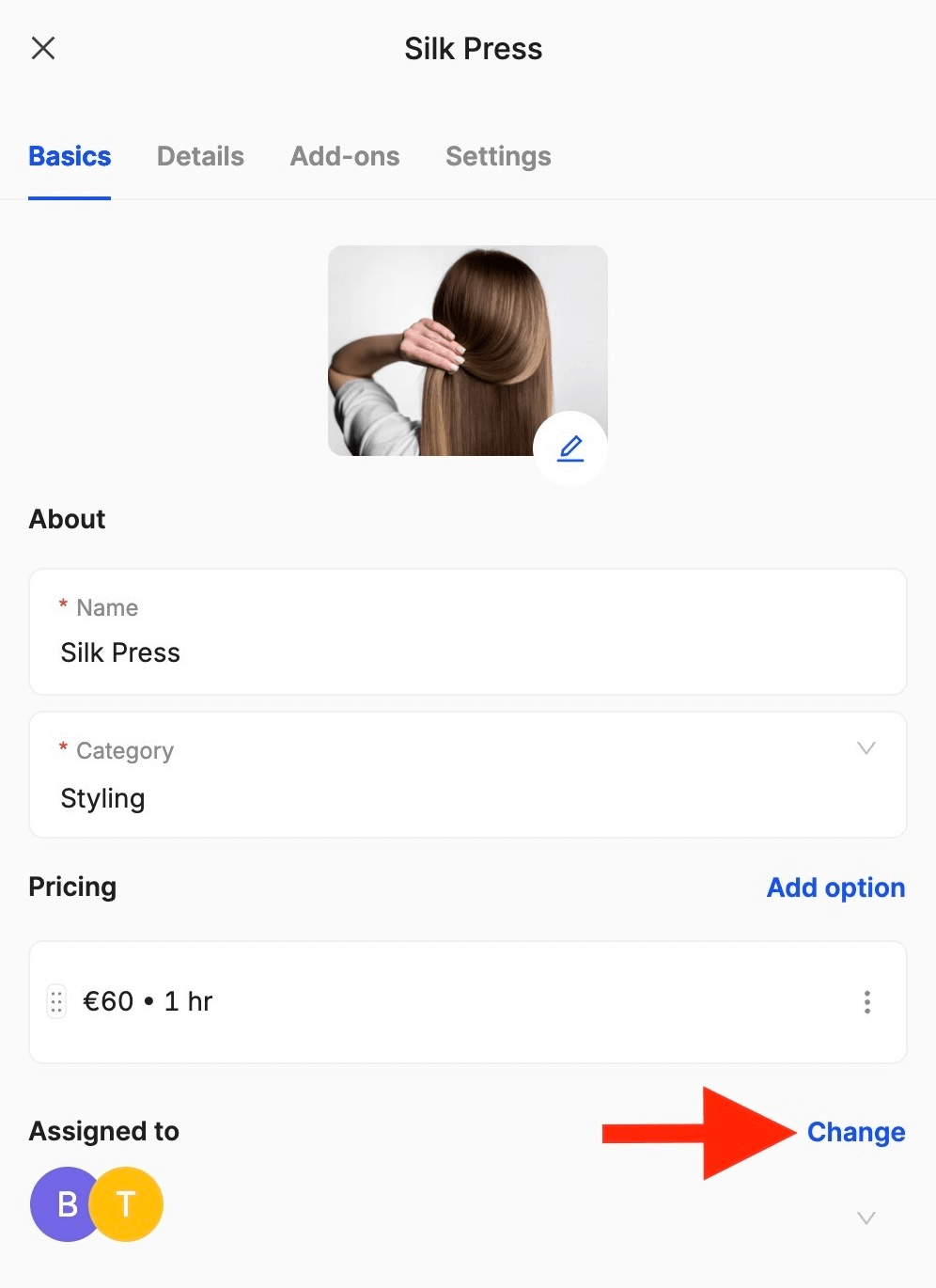
This is how that looks in the booking portal:
12. Can I set expert-based prices and durations?
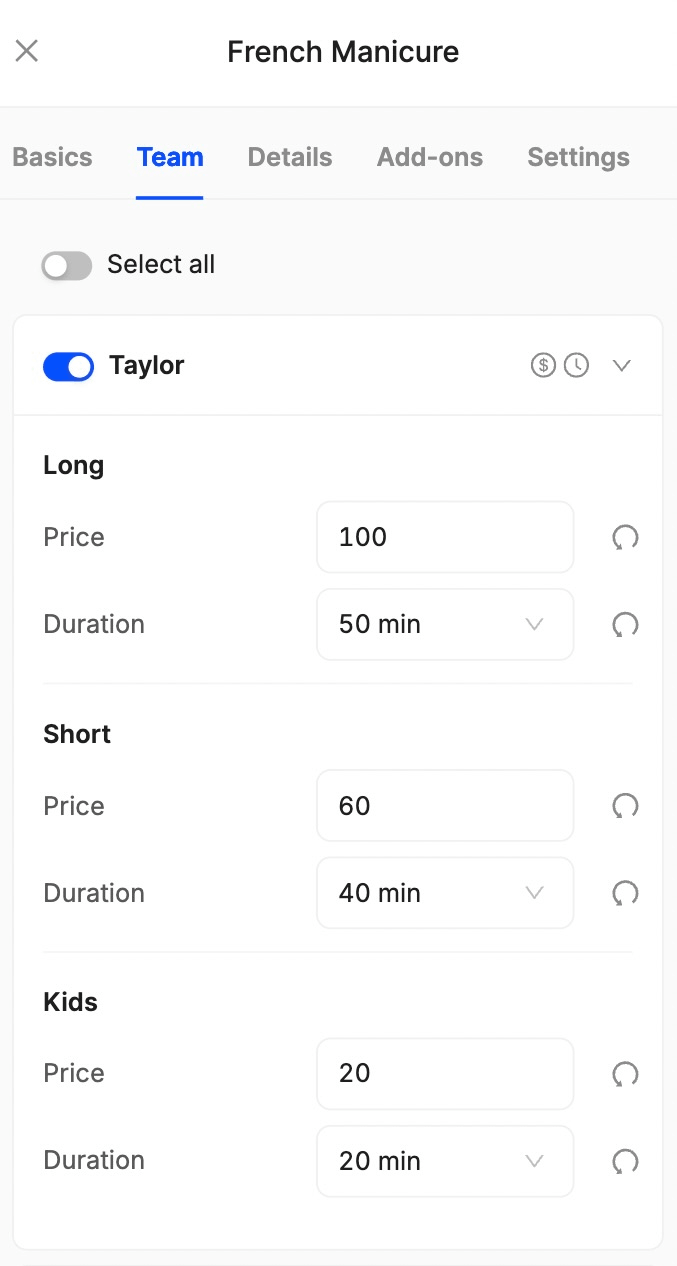
Absolutely! Once a new service is added to the service menu and the experts who perform it are assigned, price and duration for each option can be customized from Team:
13. Can customers see estimated times and prices before booking?
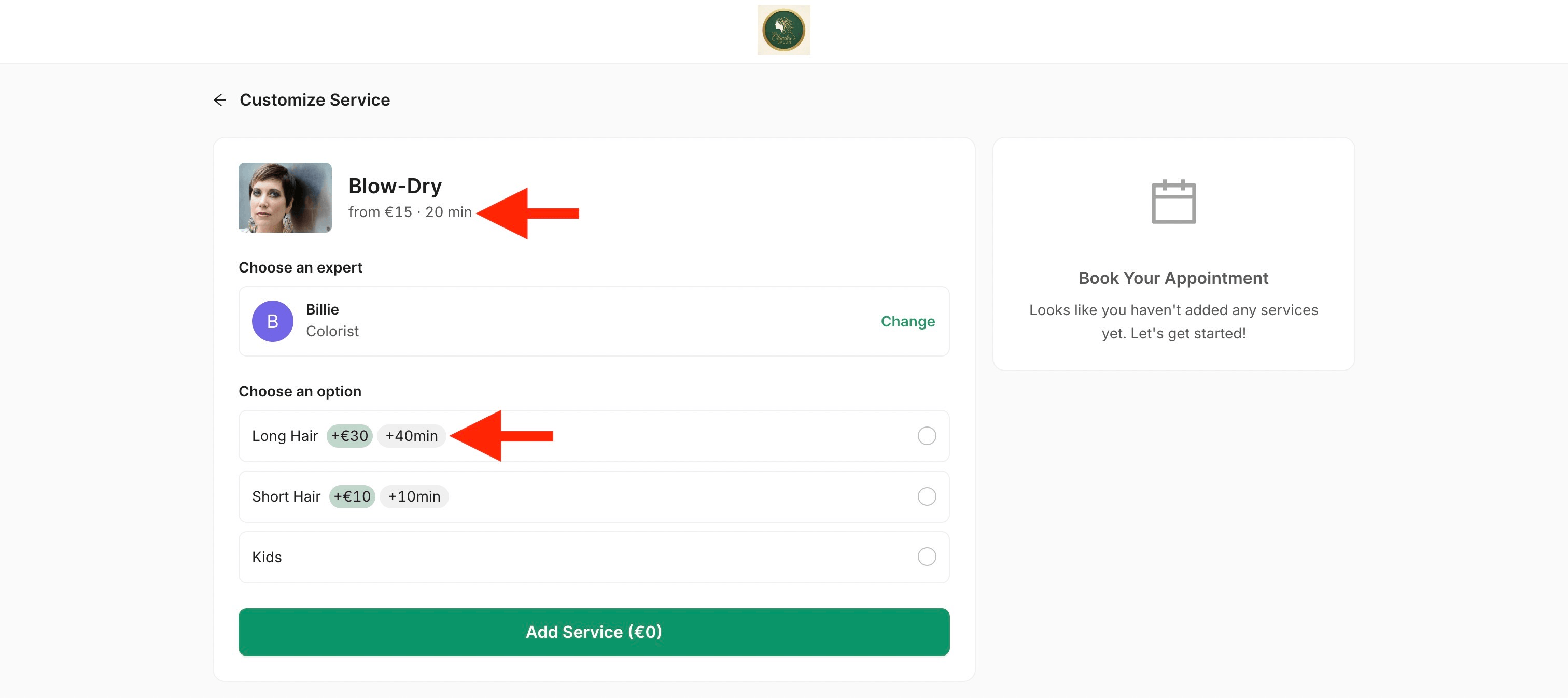
They can always see it in the booking portal! If you have add-ons activated, the additional time will show up as well:
14. Can I personalize my logo and brand color so people see them when they browse my service menu?
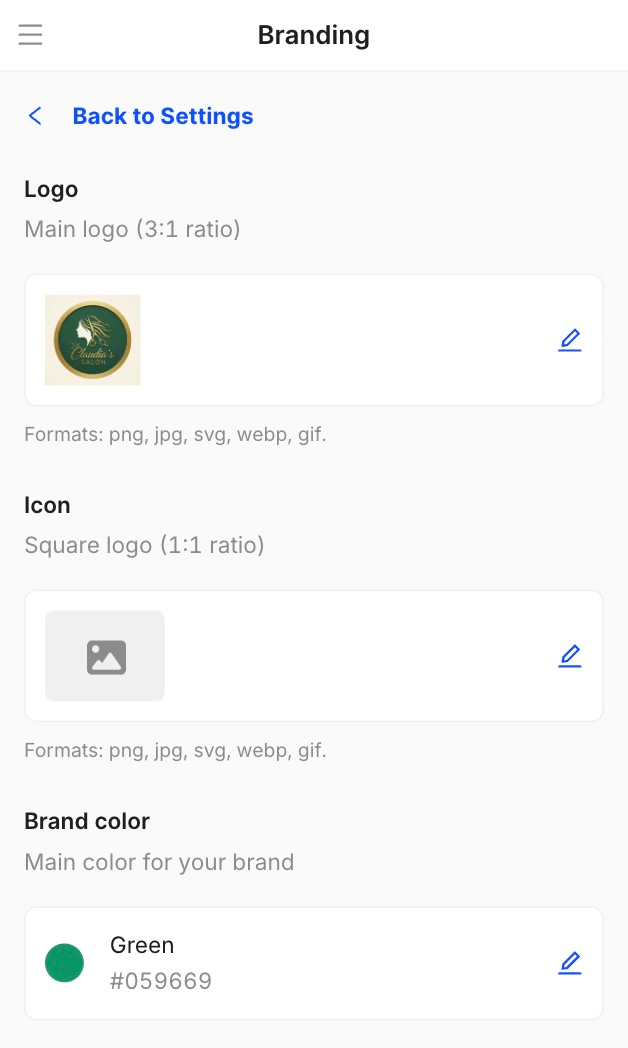
Of course! If you go to Settings and click on Branding, you can add your logo, choose the brand color clients will see in the booking portal, and also insert an icon:
15. Is the service availability updated automatically based on bookings?
Yes! Once a slot gets booked, it will no longer appear in the booking portal until it frees up!
16. Can I run discounts and promotions for specific services?
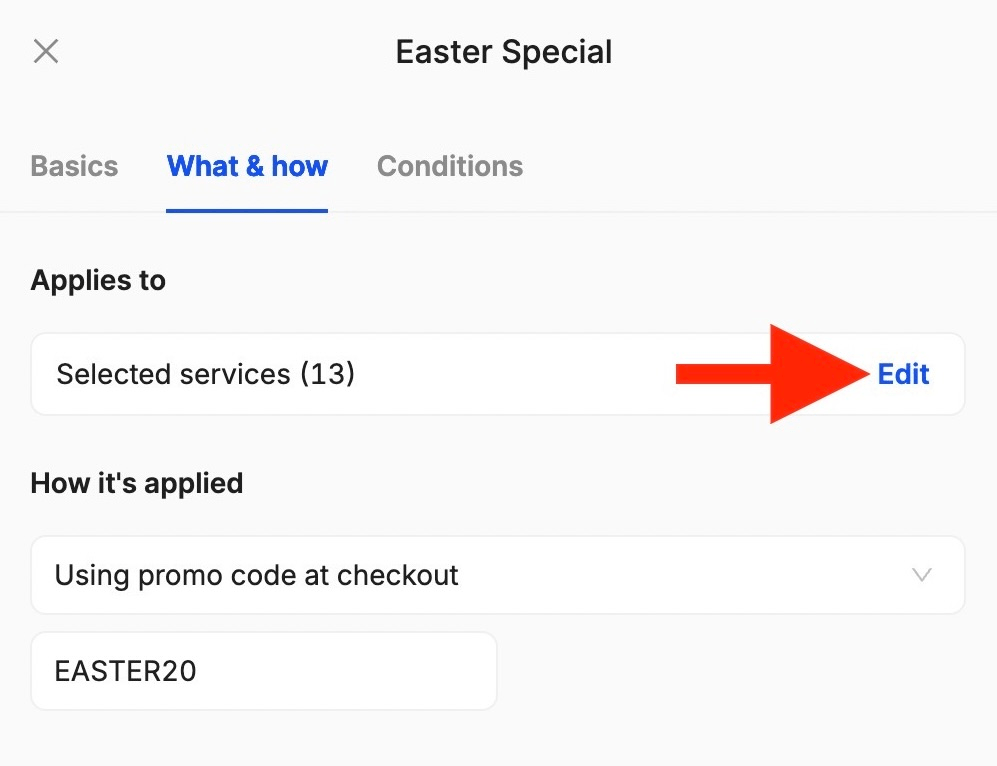
Yes! Once you activate a new promotion in the Marketing section, if you click on it and go to What & How, you’ll be able to select the services it applies to:
17. Can I share my service menu on social media?
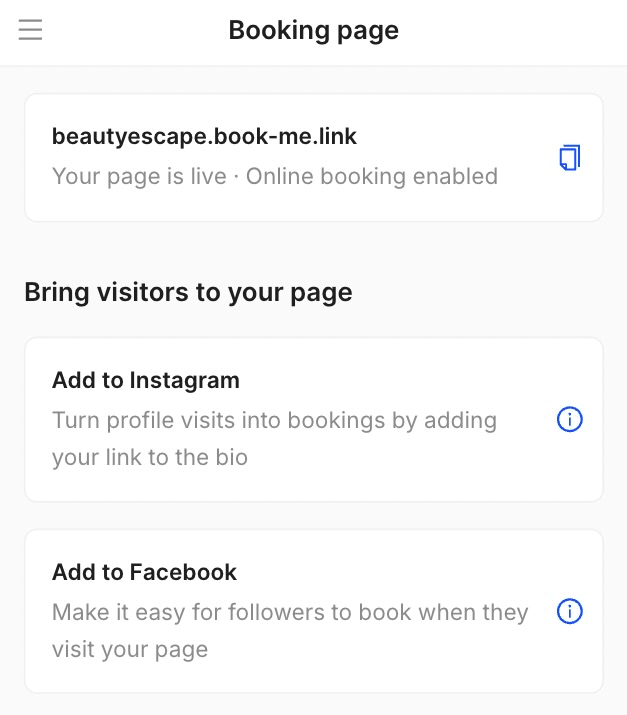
Absolutely! Once the online booking feature is activated, you get your own booking link that can be shared on any social media platform:
18. Can I connect my service menu to a website?
Yes! You can add your booking link to your existing website, or use our salon website builder to create a new one. It automatically connects to your service menu and booking system.
19. Is the menu mobile-friendly?
Yes! Our design is mobile-optimized, so your flow works perfectly on phones and tablets as well. Because it automatically adapts to smaller screens, clients can see the services and book appointments on any device without issues!
20. I don’t have time to insert my service menu manually, what do I do?
No worries, we can do it for you! Just send us your service menu (images or CSV) in the live chat, and our team will import it for you in no time, including images and descriptions.
21. I’m having issues with my service menu, what do I do?
If your service menu is not loading or showing errors, please contact the customer support team via live chat for assistance. They’ll be able to investigate and resolve the issue immediately!
Send your details - we do the rest!
We offer all you need for a thriving salon: website & logo creation, instant profile setup, 1:1 staff training payment system integration, intuitive appointment management, and more!
Start Now
TimeTailor’s salon appointment software is an all-in-one salon online booking system for freelancers and small business owners. We also optimize or create a website for your salon. This POS system allows you to take deposits and manage payments.