Frequently Asked Questions About The TimeTailor Calendar
Everything you need to know about your salon booking software calendar and scheduling functions!
1. How do I insert a new appointment?
To manually add a new appointment into the salon scheduling software, all you have to do is go to the Calendar section, click on Add, and select Appointment:
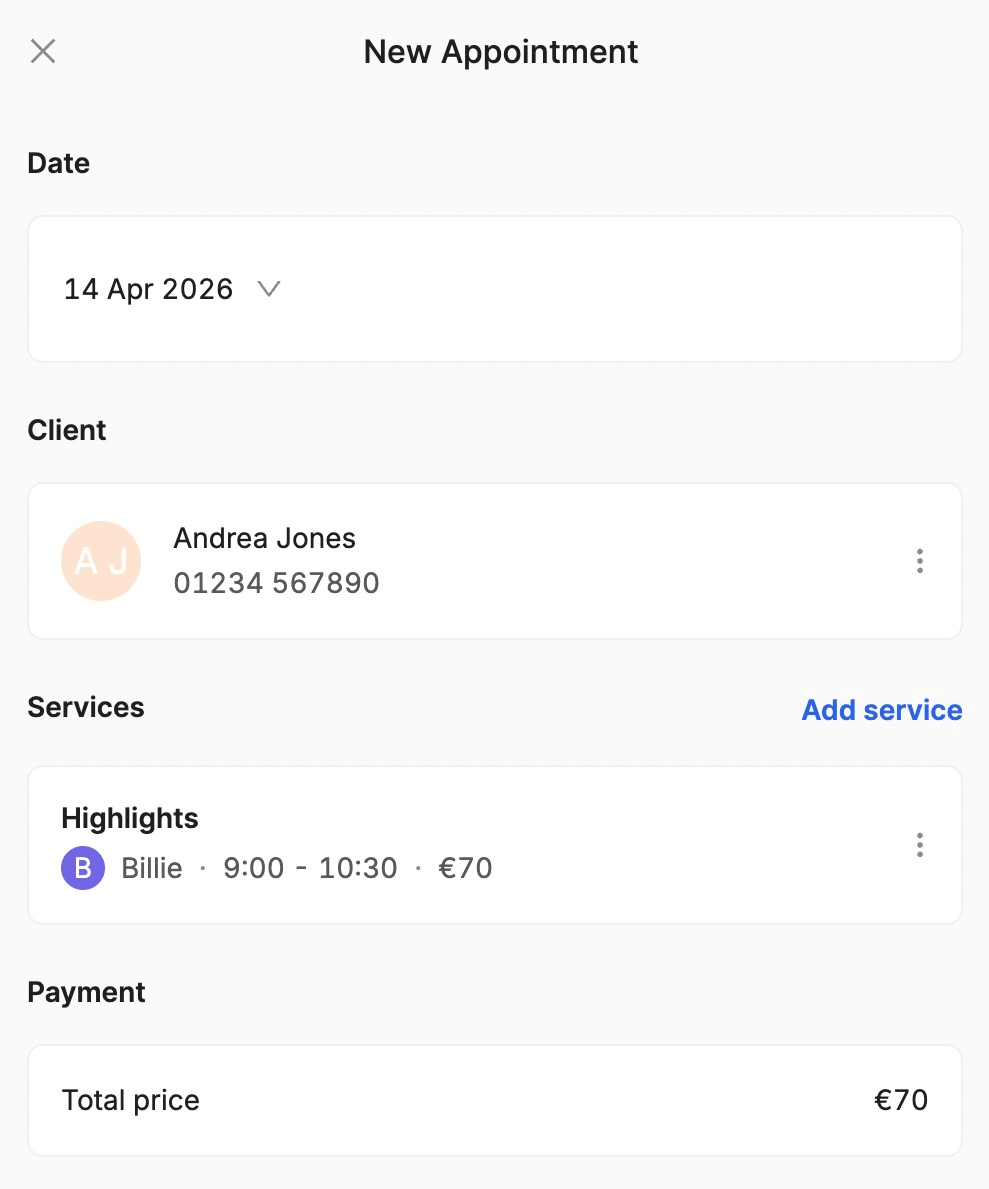
From here, you can choose the date, the client (walk-in, new or existing), the services, the expert, and the hour of the booking.
2. Where can I find my booking link and how do online bookings appear in my calendar?
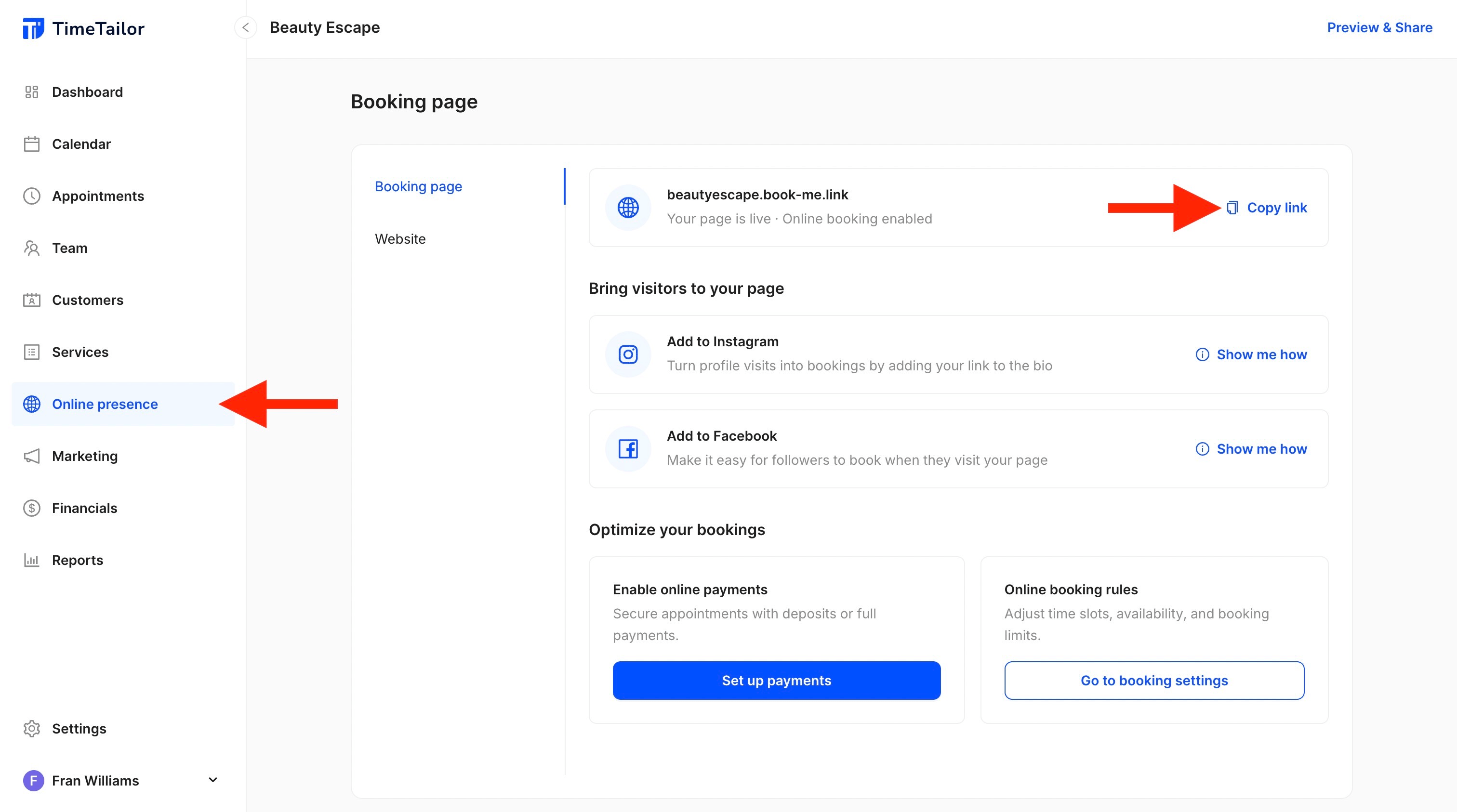
Each salon has its own booking link that can be shared on your social media platforms and your personal website. You can find your unique booking link inside the Online Presence section. Once a client makes an appointment, it automatically appears inside the calendar:
3. How do I edit, reschedule, or cancel an appointment?
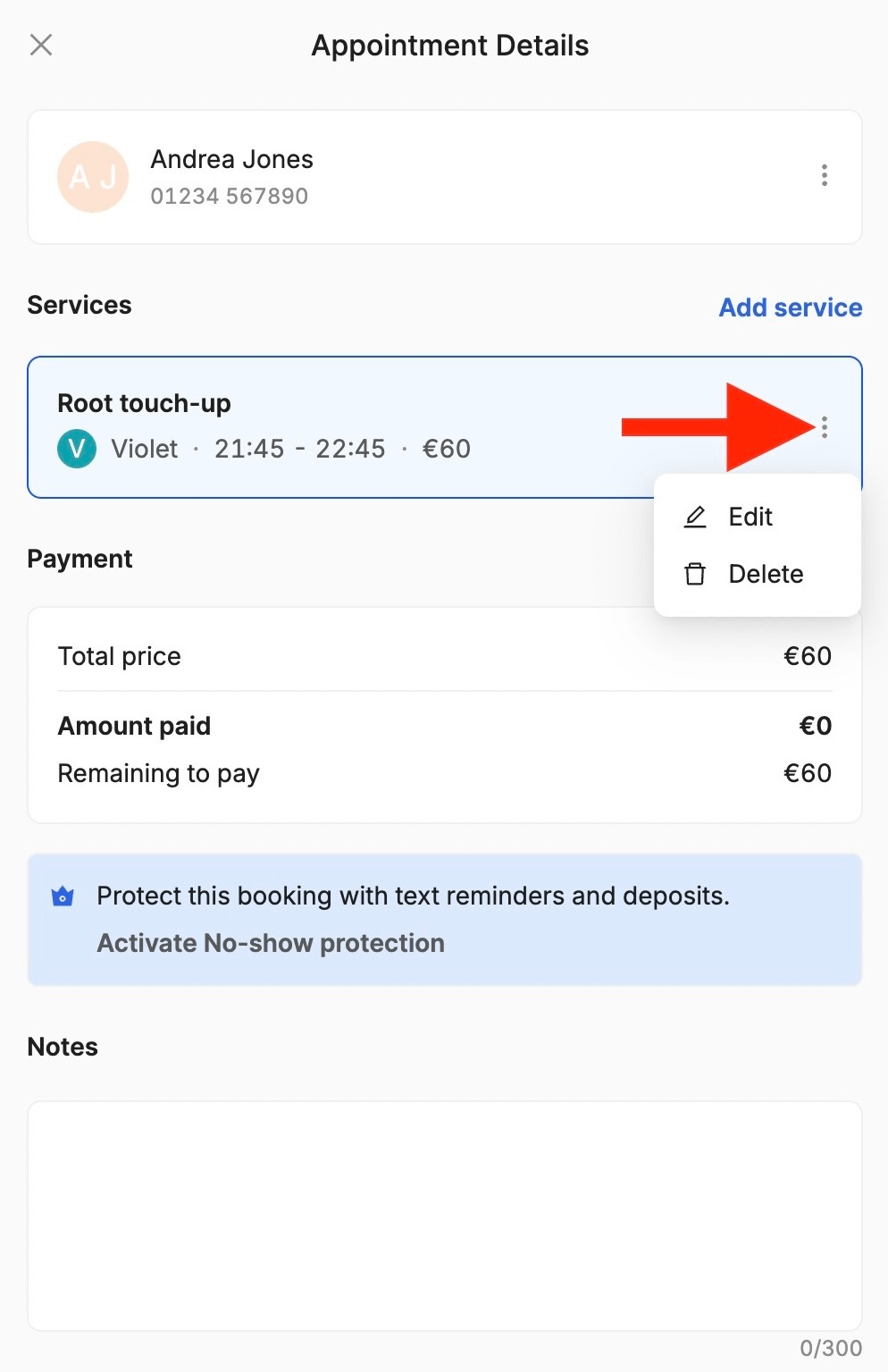
Simply go to the Appointments section and select the appointment you wish to modify:
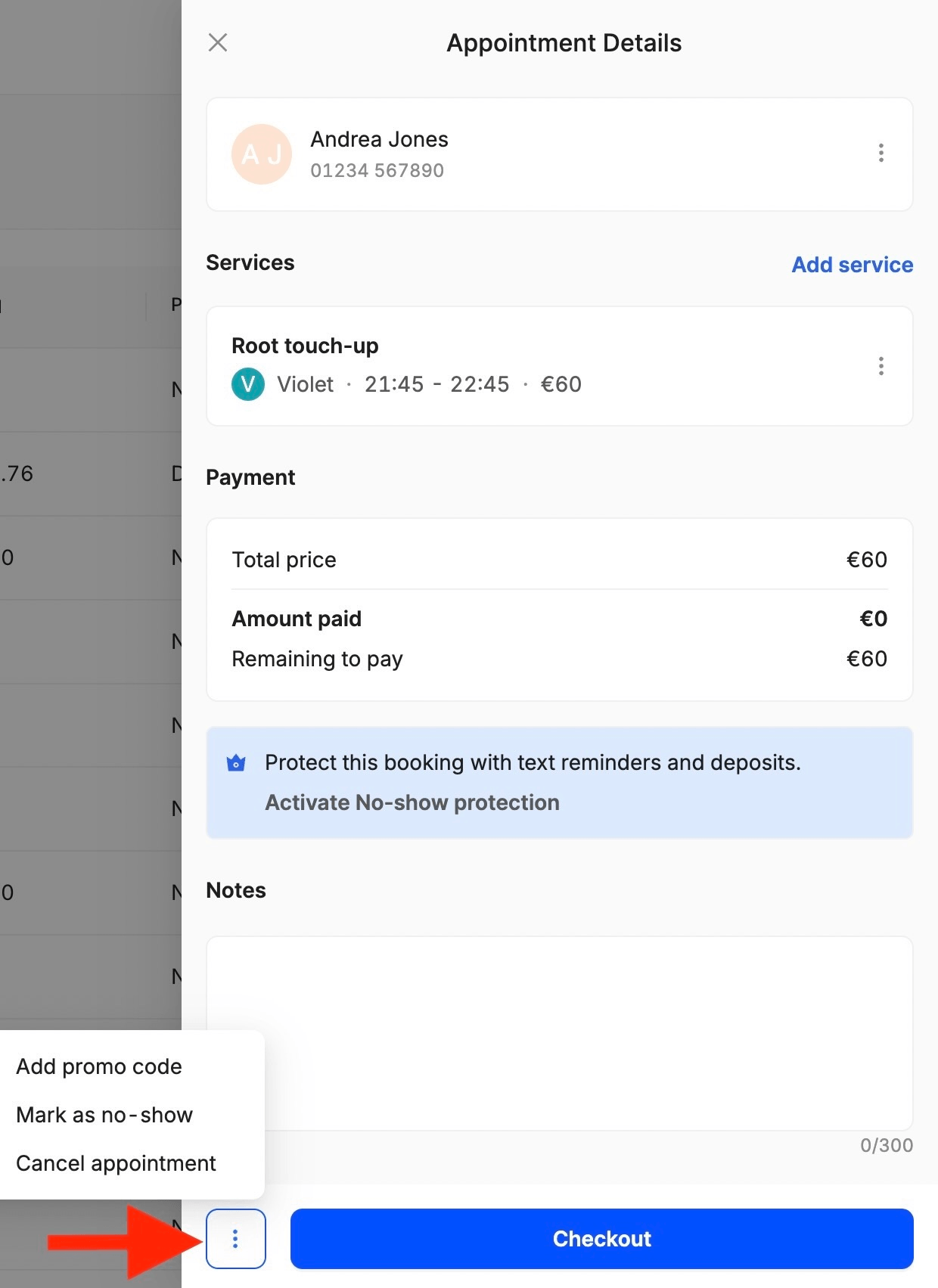
If you need to cancel it, mark it as a no-show or add a promo code, you can find the options next to the Checkout button:
4. Can I drag and drop an appointment in the calendar to change its time?
Yes! You can move an appointment by dragging and dropping it to a new time on the calendar.
5. Can I edit past appointments?
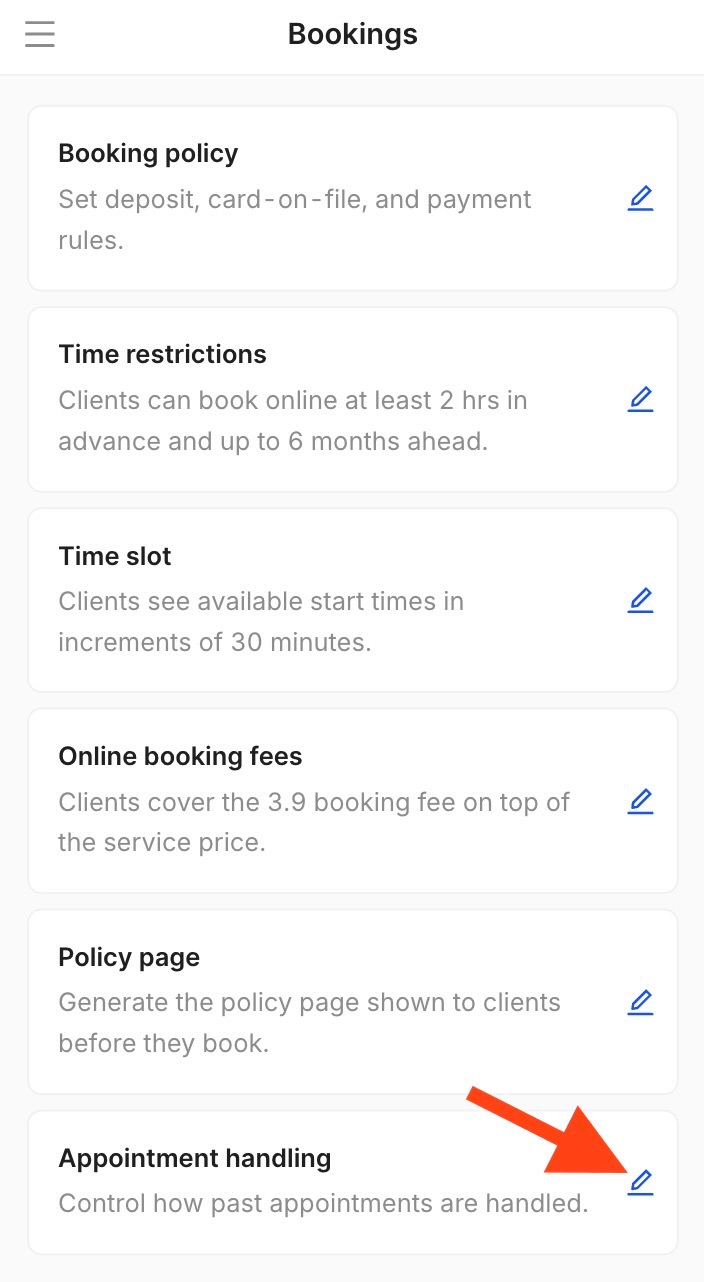
Of course! If you go to Settings, Bookings, Appointment handling, you'll be able to set how many days past appointments remain editable before they're marked as completed:
6. How do I add notes to appointments?
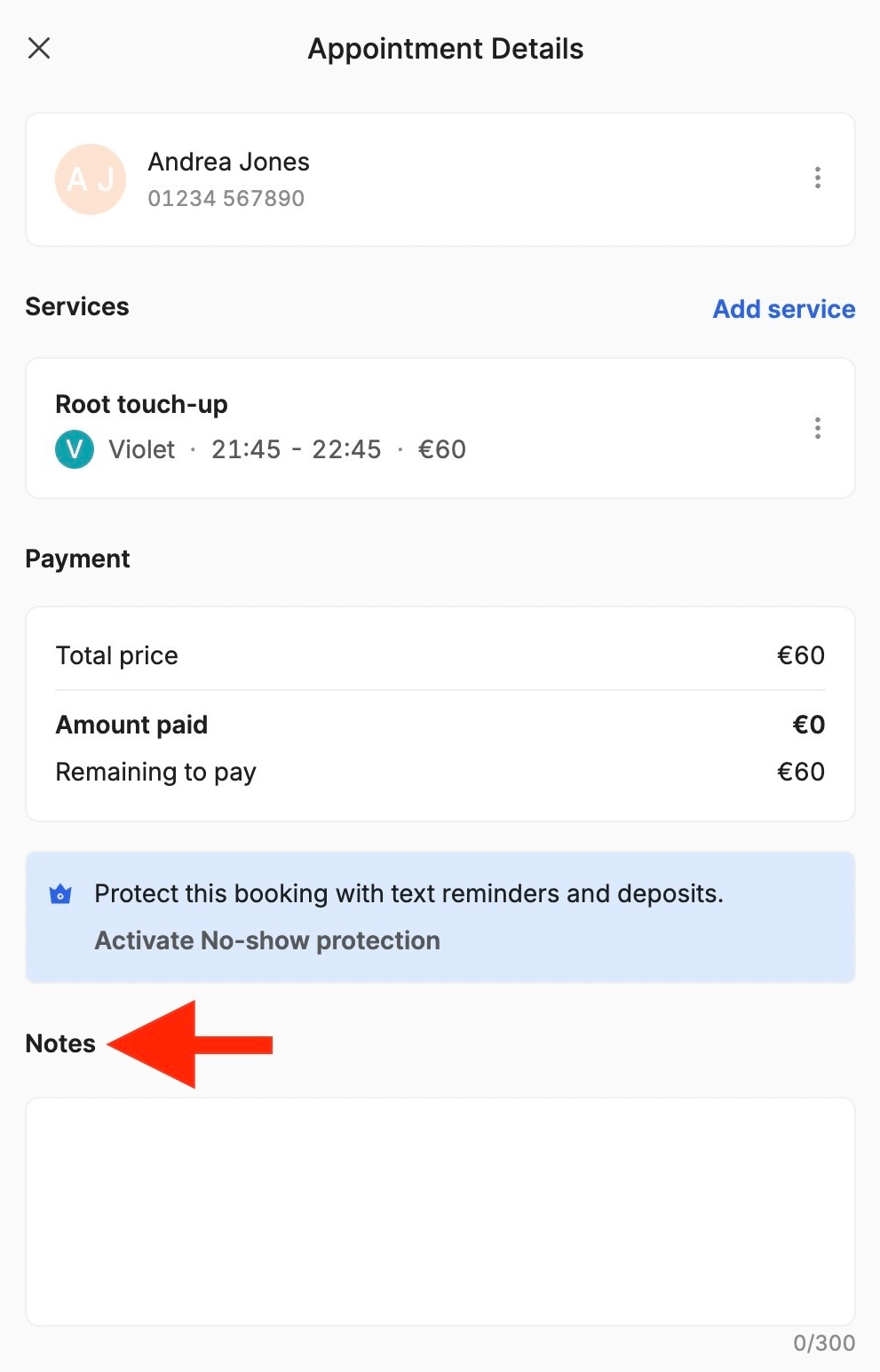
You can find the Notes column in the Appointments section by clicking on the booking you want to add a note to:
7. Can I add notes for customers?
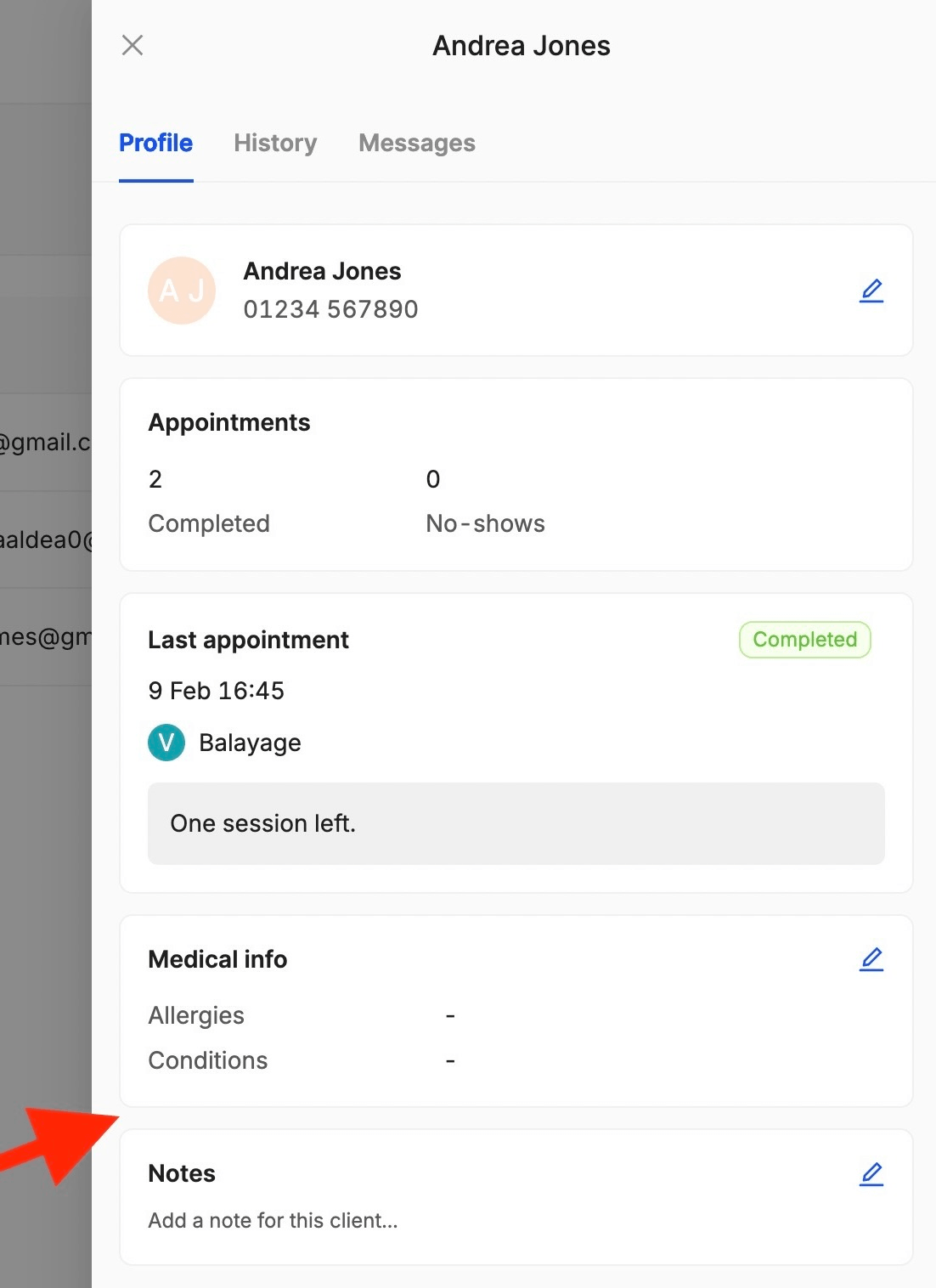
Of course! Inside the Customers section, you can add notes, medical information (allergies, conditions), view the appointment history, and check messages such as reminders and re-booking nudges:
8. Can I block customers?
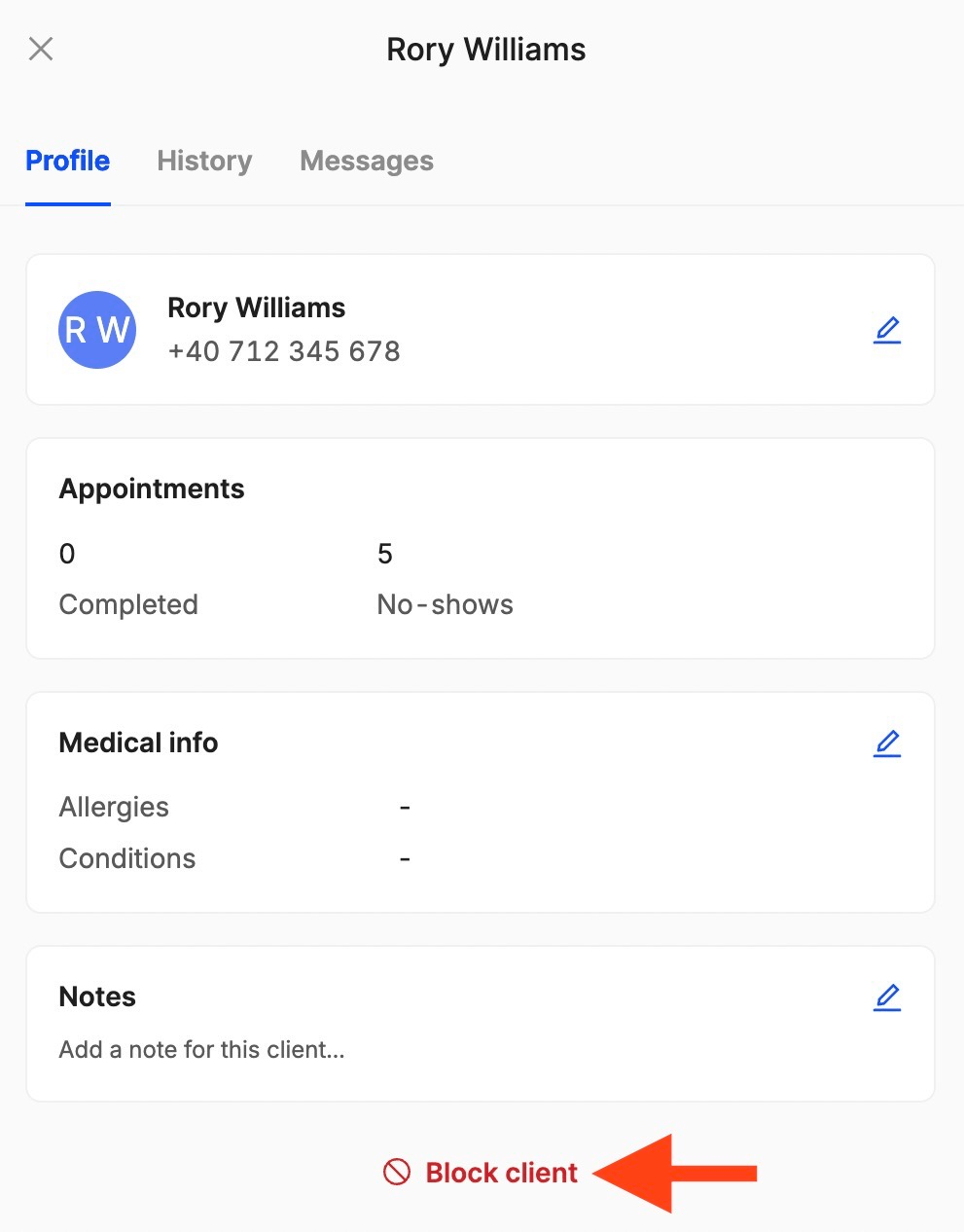
Absolutely! If a customer is causing issues or you no longer wish to interact with them, you can block them at any time:
9. How do I switch between daily, weekly, and monthly viewing inside the calendar?
We made sure everything's right at your disposal! You can directly switch from daily to weekly or monthly while you're viewing the calendar:
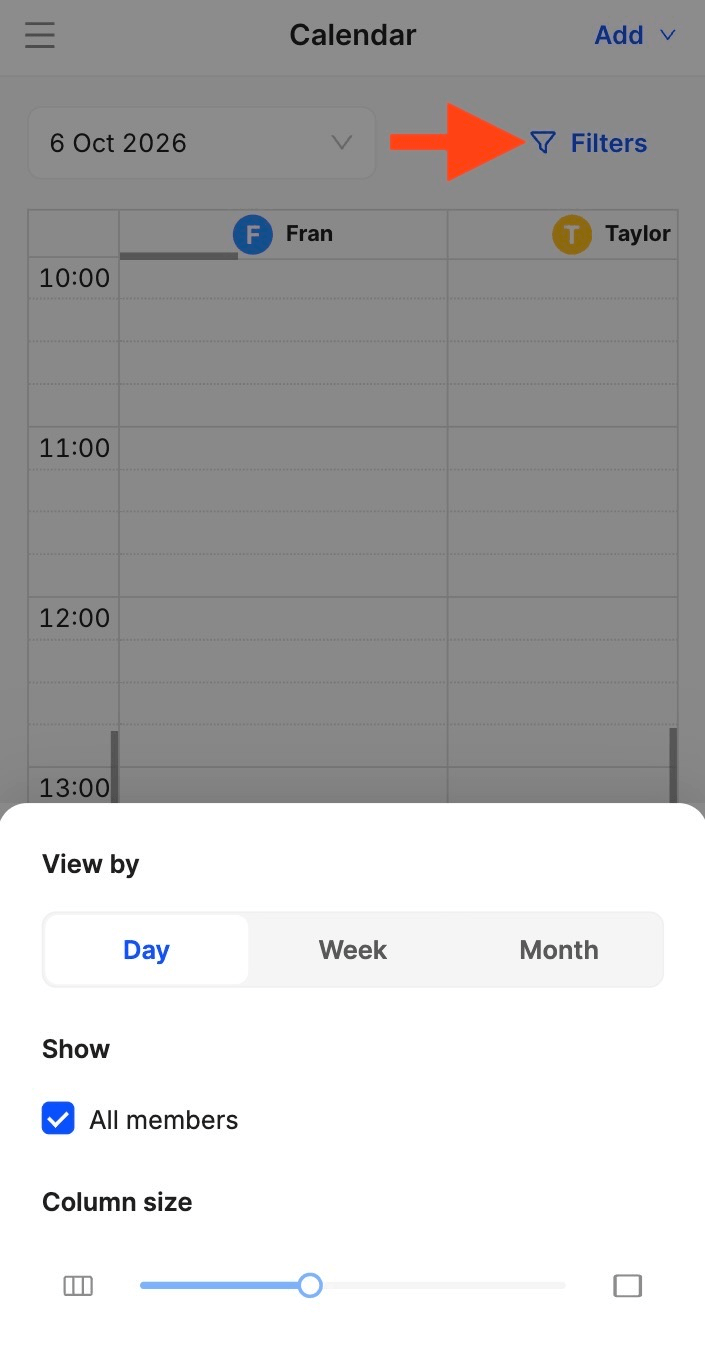
10. Can I filter the calendar by staff member?
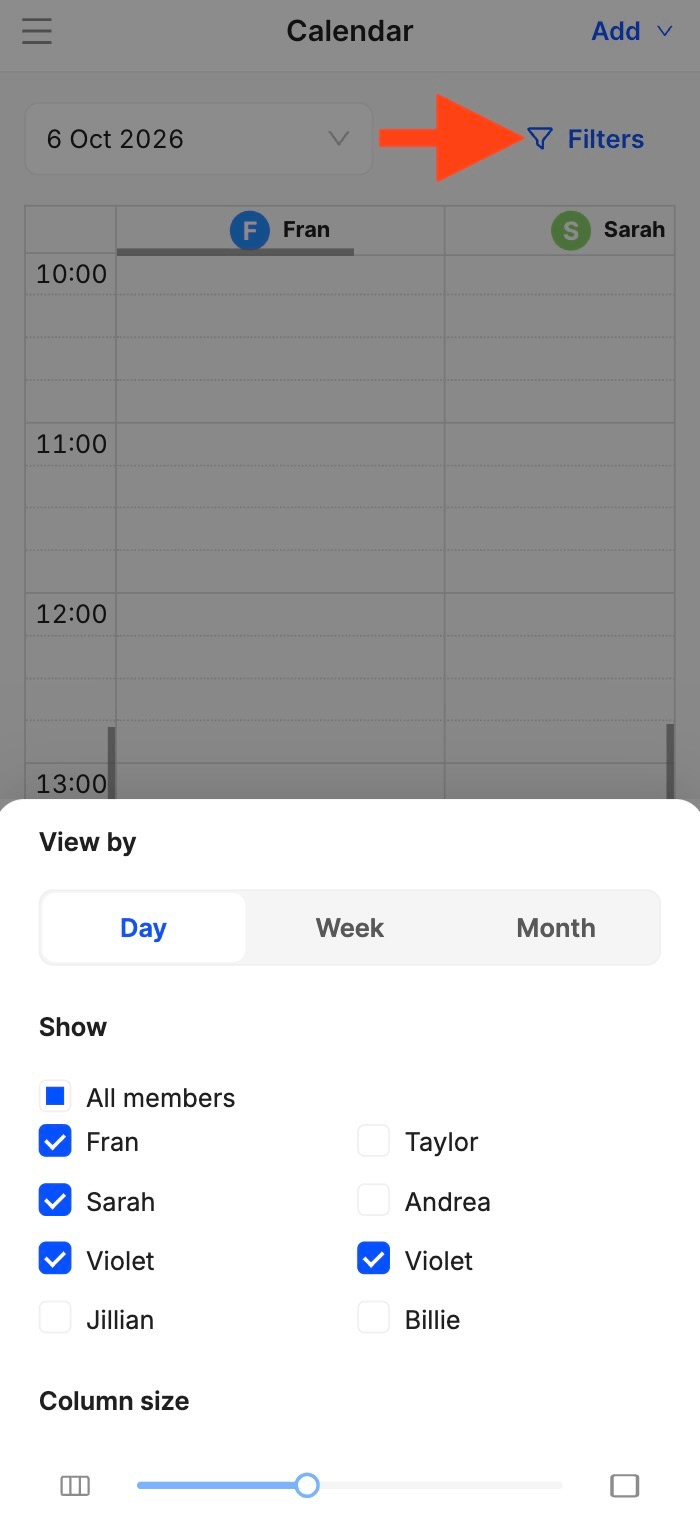
Yes! You can filter the calendar by staff member. Just use the filter option and select the team member you want to view:
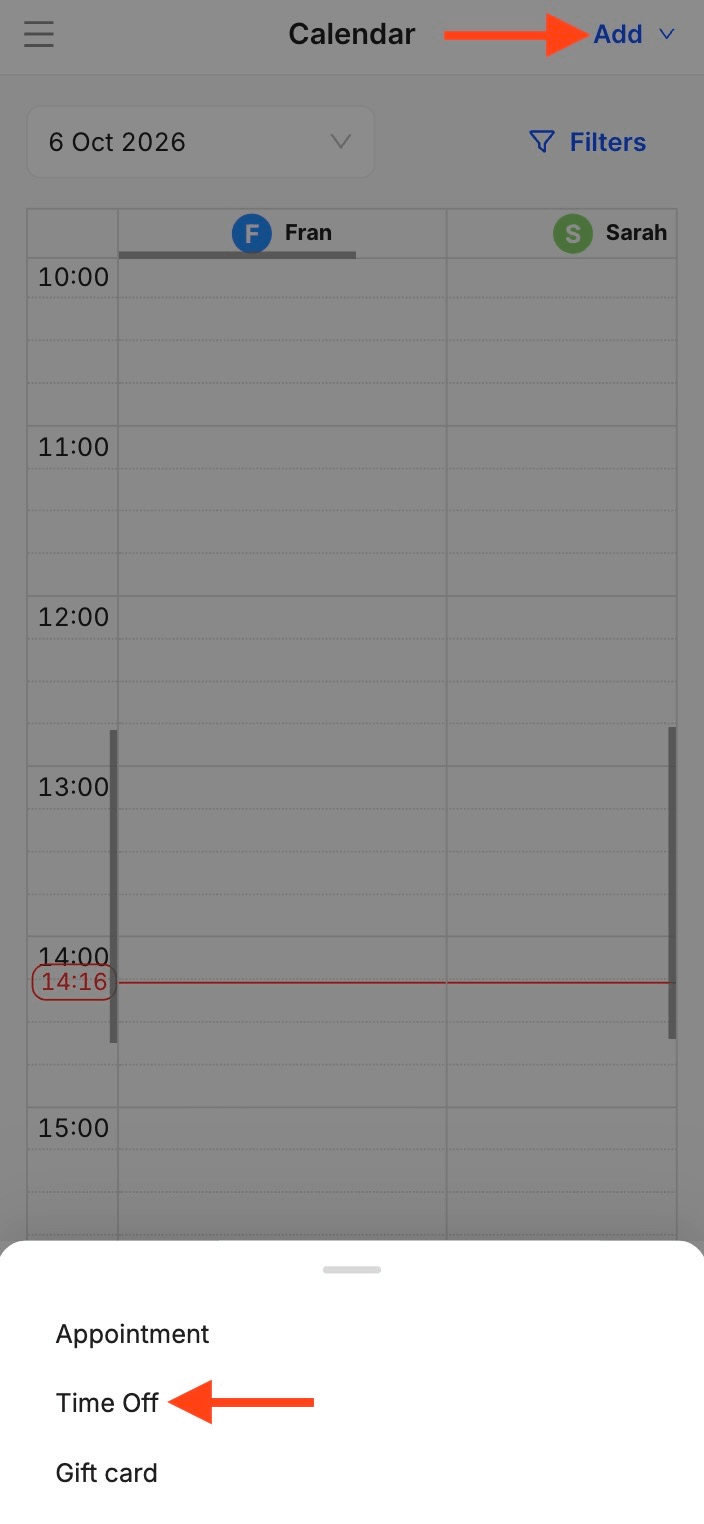
11. Can I block time off?
Yes, you can! Just add a time-off entry in the calendar to block out the desired period. Choose the team member, the date (including all day if needed), and the time they're off:
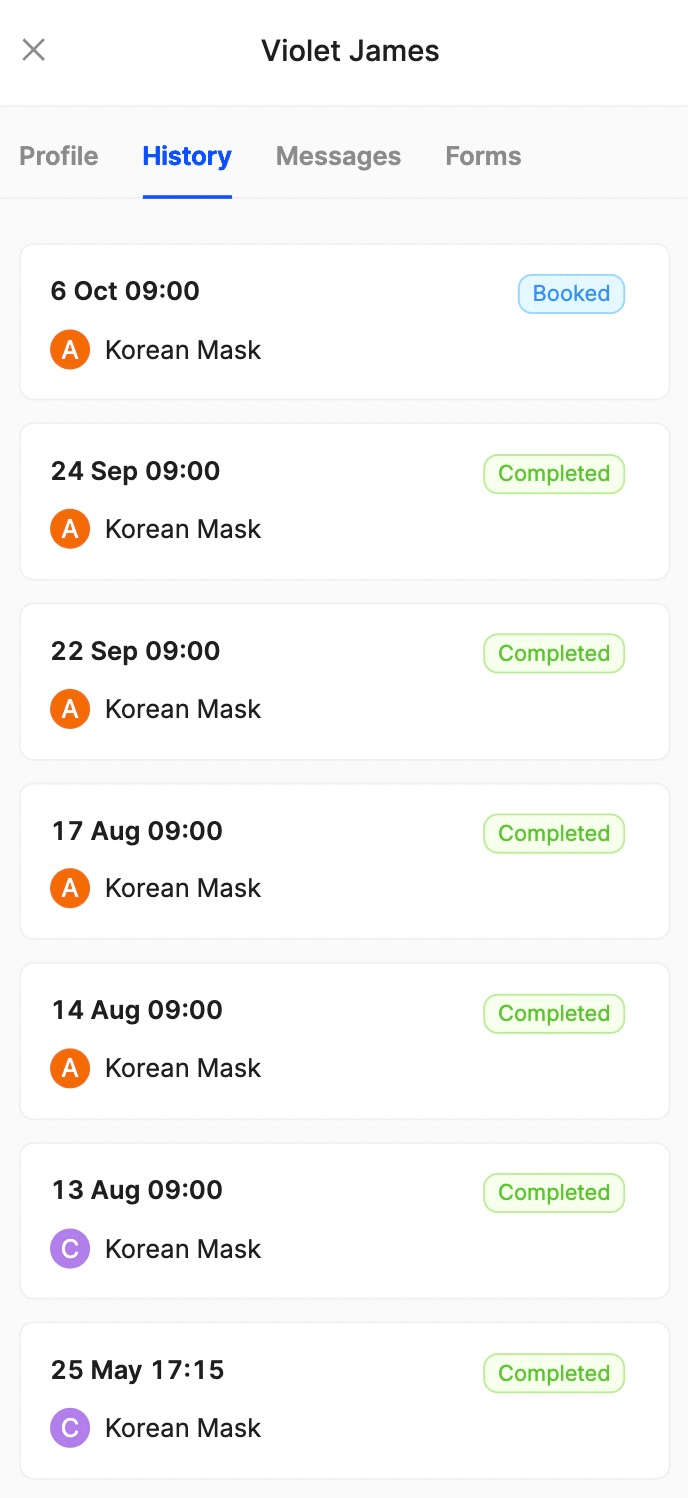
12. How do I track appointment history for returning clients?
You can view the appointment history by going to the Customers section, selecting a client, and clicking on History:
13. How do I apply discounts or promotions to scheduled appointments?
All you have to do is go to the Appointments section, select a booking, then click the Options bar next to the Checkout button:
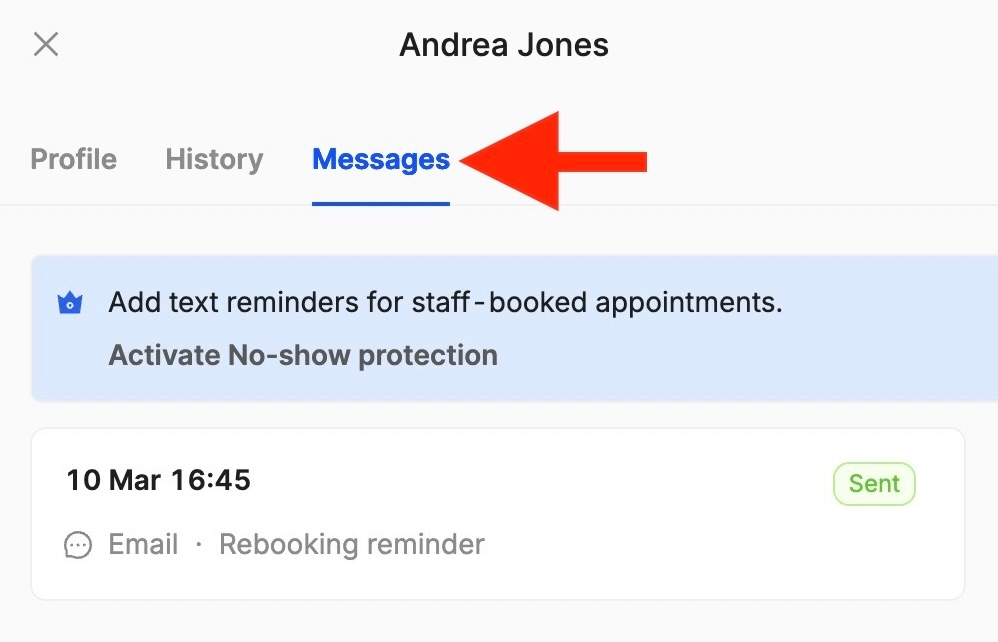
14. Can I see the reminders that were sent?
Sure, you can see all the sent reminders and re-booking nudges! All you need to do is go to the Customers section, select the client you want to check, and click on Messages:
15. What do I do if my calendar loads slowly or shows errors?
If your calendar is loading slowly or showing errors, please contact the customer support team via live chat for assistance. They'll be able to investigate and resolve the issue in no time!
Send your details - we do the rest!
We offer all you need for a thriving salon: website & logo creation, instant profile setup, 1:1 staff training payment system integration, intuitive appointment management, and more!
Start Now
TimeTailor’s salon appointment software is an all-in-one salon online booking system for freelancers and small business owners. We also optimize or create a website for your salon. This POS system allows you to take deposits and manage payments.