Frequently Asked Questions About The Team Management Features
Everything you need to know about the team management features provided by our salon software!
1. How do I add team members to the system?
To begin using the salon management software for your team, all you have to do is go to the Team section and click on Add:
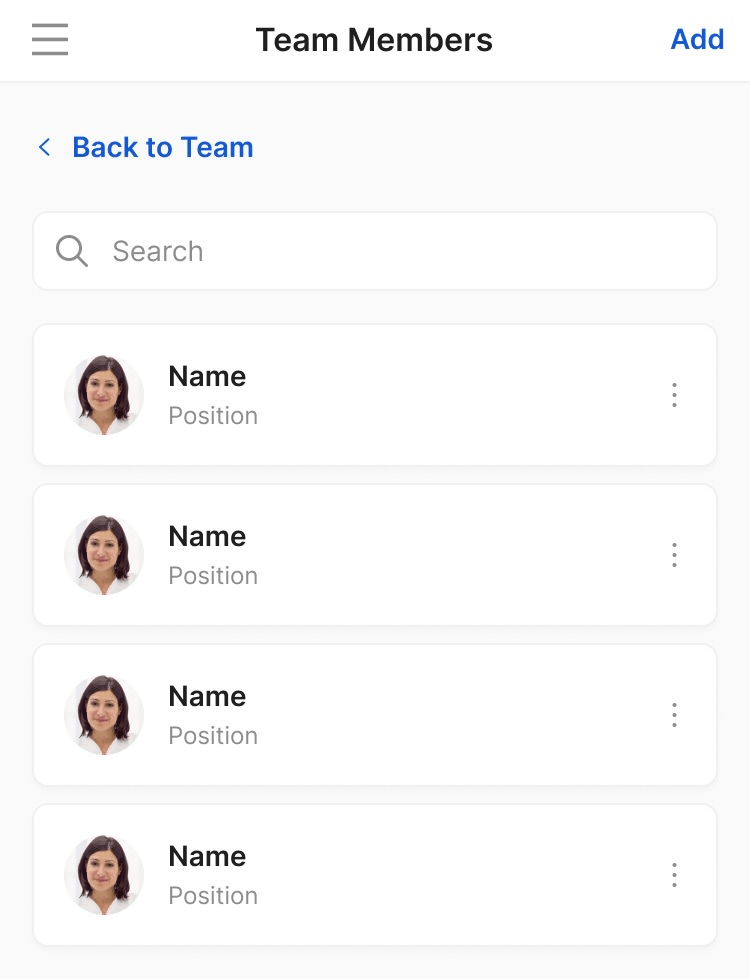
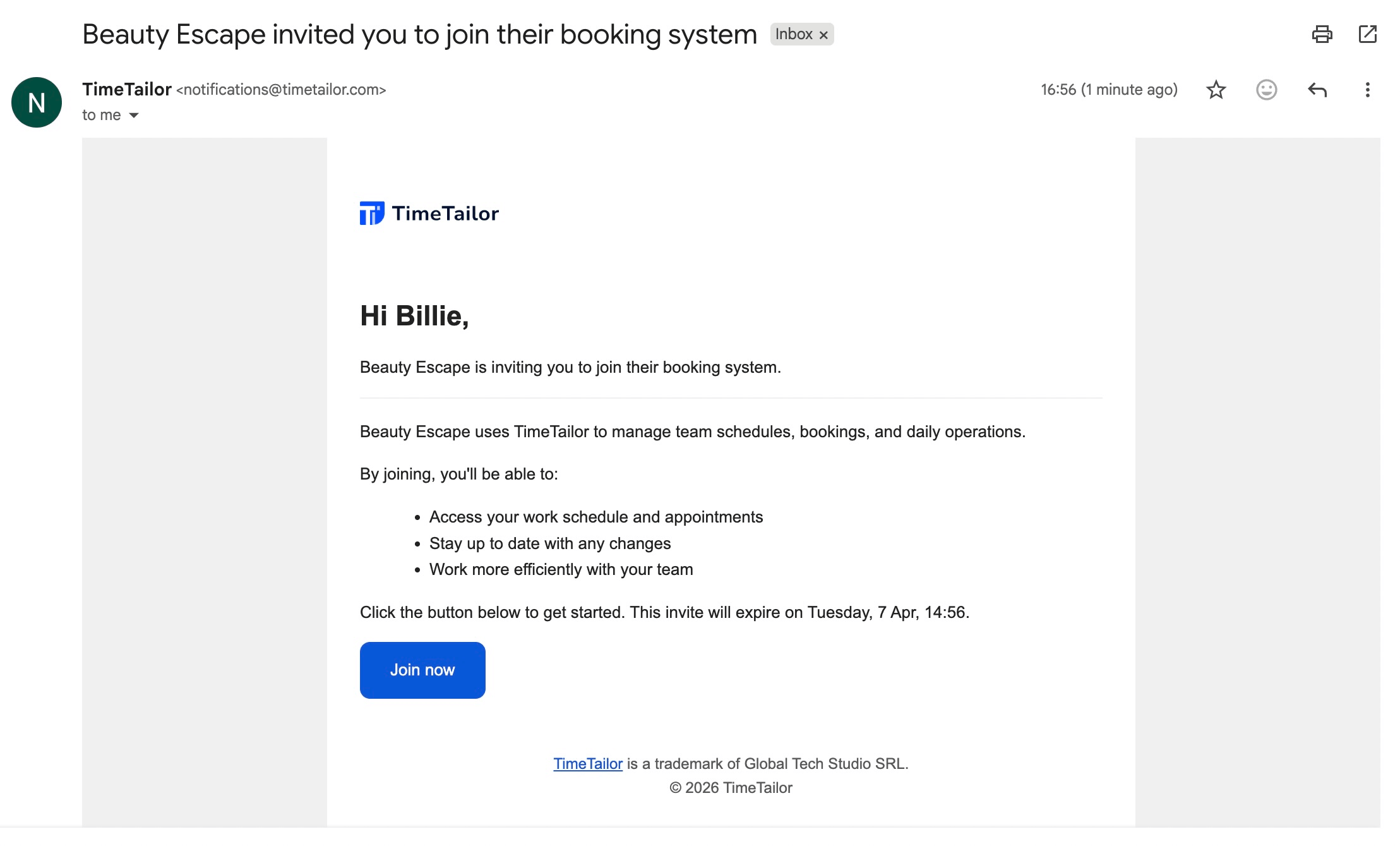
From there, you can add their name, job title, and whether they perform services or not. If they do, the next steps are to assign the services they provide, set the working hours, and enter their email address and access level. They can then activate the account via email:
2. How do I set up a team member profile?
Once the account has been set up and they accepted the invitation via email, they can start using the salon booking software! Additionally, you can now add a profile image, contact information (phone number, email address), and set up their public profile (display name and job title).
3. How do I edit the working hours of a team member?
To edit the working hours of a specific team member, go to the Team section and click on their profile:
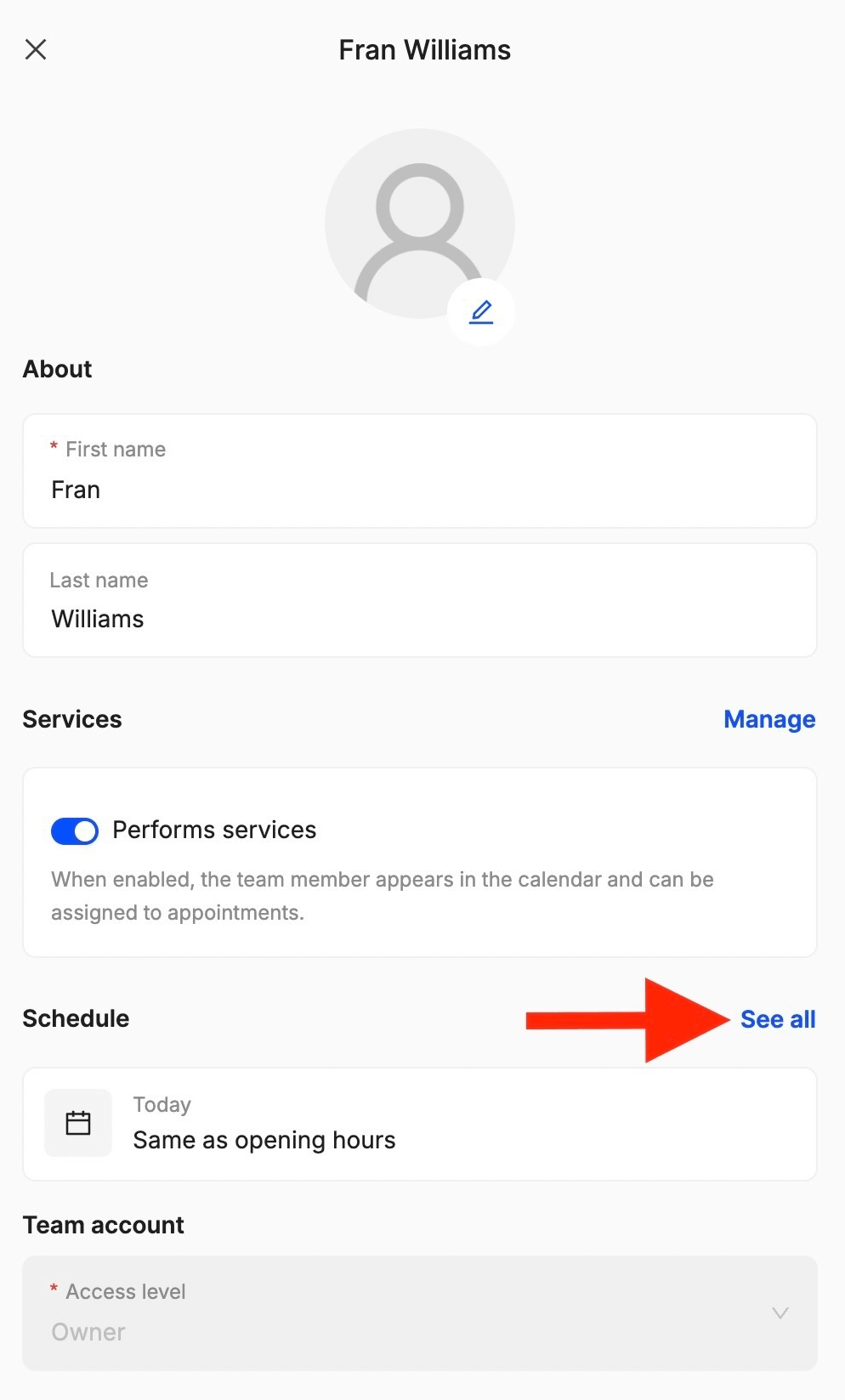
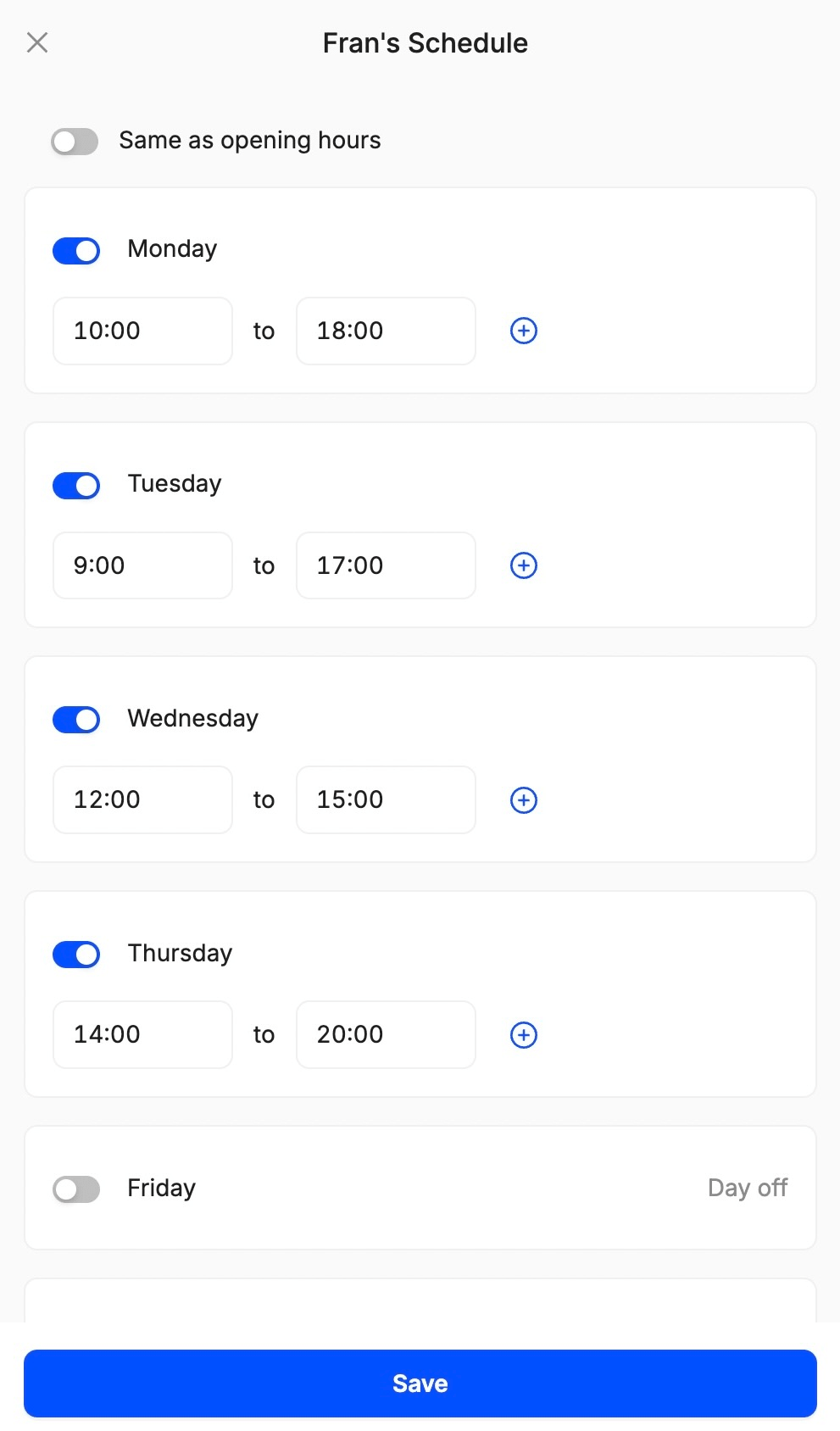
Navigate to the Schedule section and click on See All. From there, you can edit their working hours as needed:
4. Can I assign different access levels?
Of course! When you add or edit a team member, you can choose what they’re allowed to see and do inside the salon management system. You can grant them owner, manager, expert, or receptionist level access, protecting your data and keeping everyone focused on their role.
5. Can I restrict access to financial data or client records?
Yes! You can restrict access to sensitive information like financial data and client records. The owner has full access to everything, the manager can see bookings and client info, but has limited or partial access to financial information, the expert can access the calendar and appointments, and the receptionist can create and manage bookings by seeing basic customer info. It’s all up to you!
6. Can team members manage their own schedules?
Absolutely! Each team member gets their own account and can view and edit appointments depending on their role and access level.
7. Can I add time off to the calendar?
Yes! You can do this by going to the Team section, navigating to Time Off, and clicking Add:
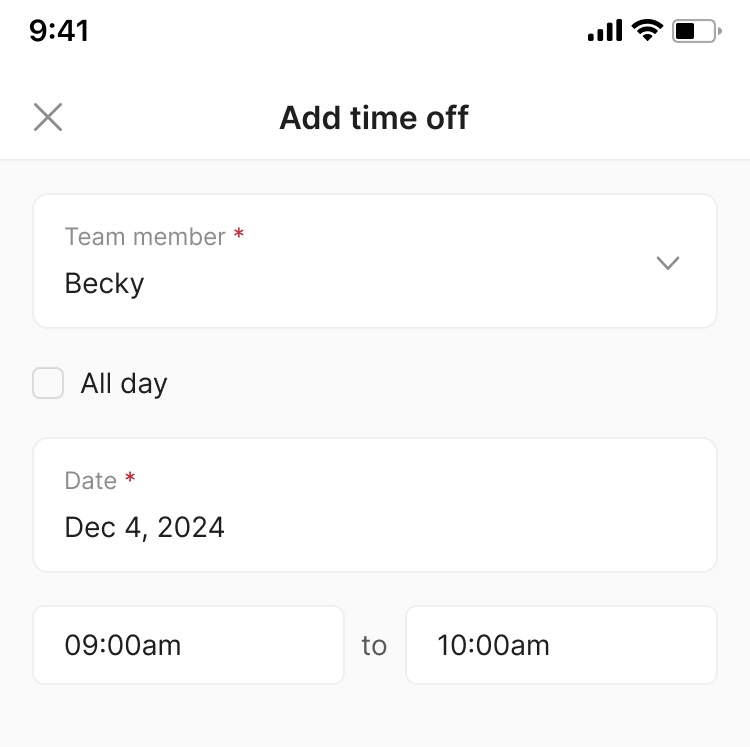
From there, you can select a team member and choose their break time (including a full day if needed).
8. Can the system prevent double bookings for staff?
Yes, TimeTailor is designed to prevent double bookings for staff! Our salon management software uses a centralized calendar, so once a time slot with a certain expert is booked, it is no longer available to others.
9. Can I assign services to specific employees?
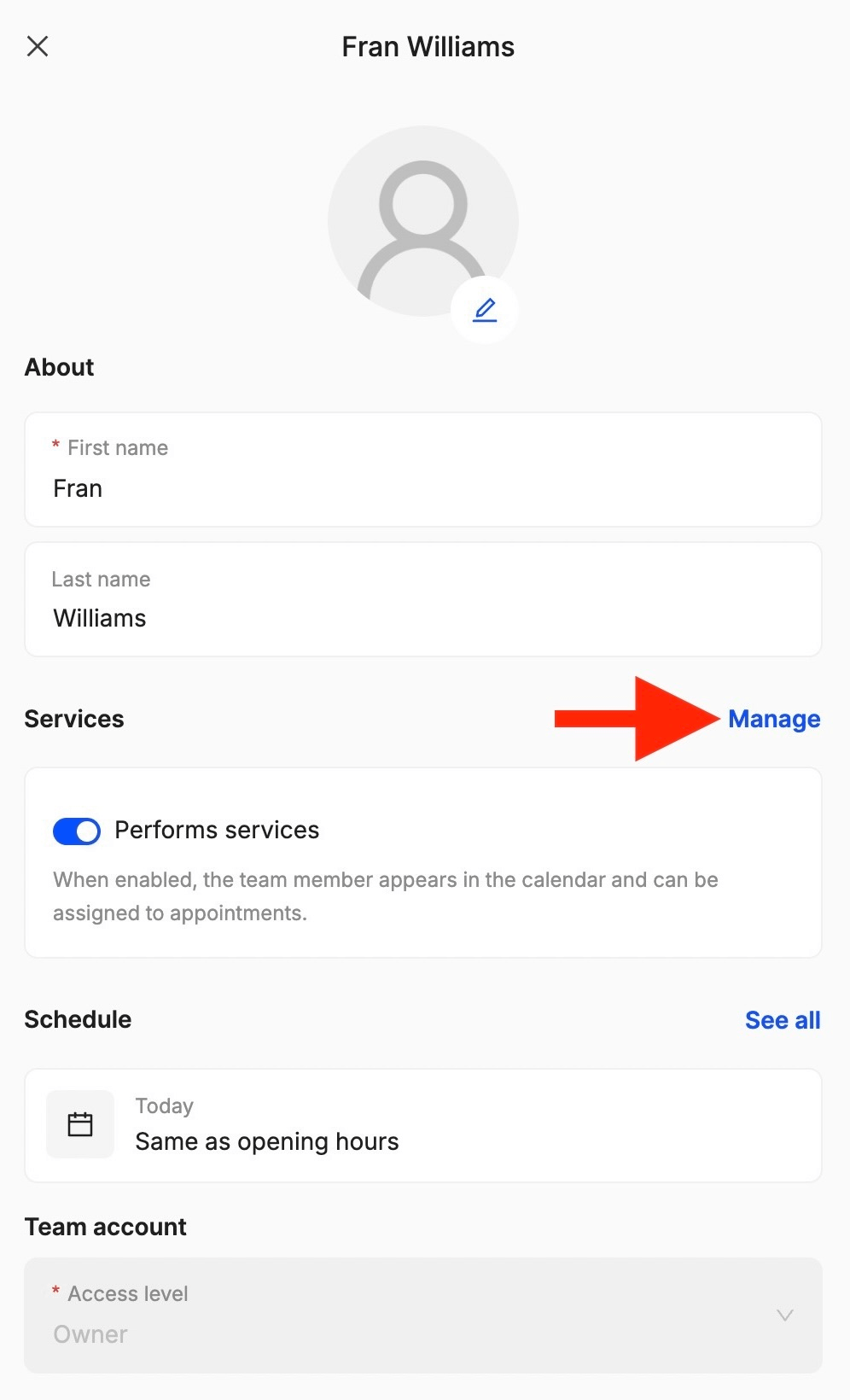
Absolutely! This is part of the onboarding process, and you can always update the information by going to the Team section, selecting a team member, and editing their Services:
10. How do I add my receptionist to the account?
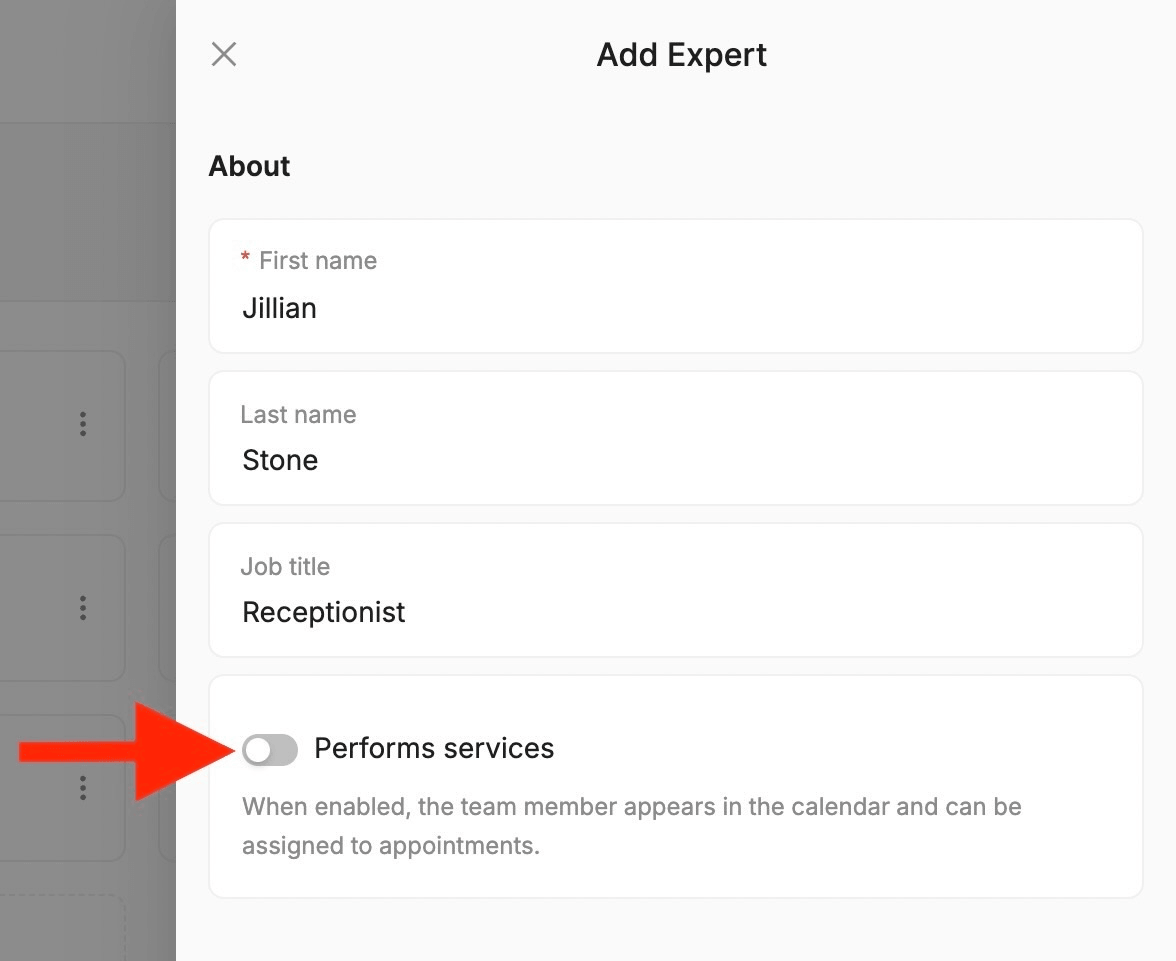
After you go to the Team section and click on Add, make sure the “Performs Services” option is unchecked. Afterward, just select “Receptionist” as the access level, and you’re done!
11. How can I update the details of my team members?
You can update any information by going to the Team section and selecting a team member!
12. Can I access reports for my team members?
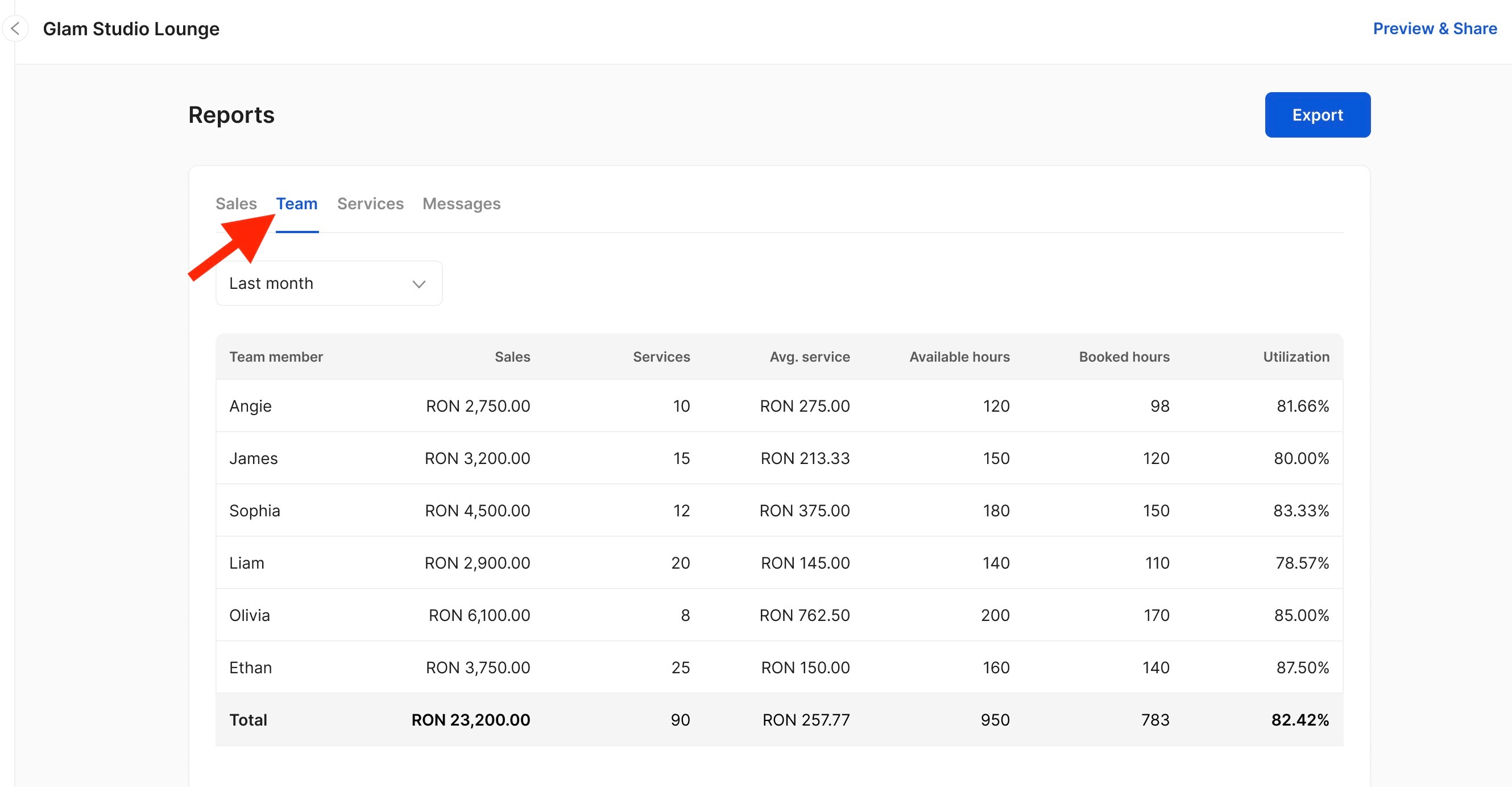
Yes! Inside the Reports section, you can click on Team to view sales, services performed, average service revenue, available hours, and booked hours per team member:
13. Does my team get notified when we have a new appointment?
Yes! Team members get notified when there’s a new appointment or schedule change. This feature ensures everyone remains up to date without relying on direct communication.
14. Is there a mobile app for staff?
Your staff can manage everything they need from their phone or tablet once they’ve been added to the team by using the TimeTailor app. No need for extra platforms or hardware!
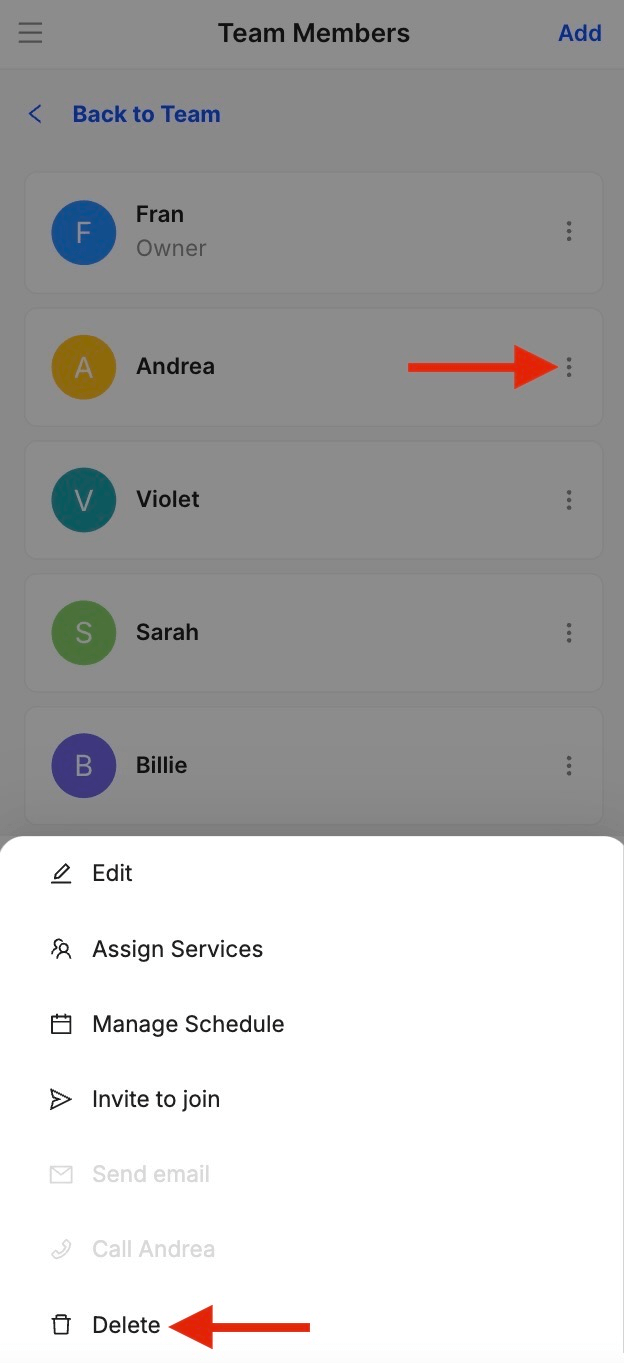
15. How do I remove team members from the system?
If you need to remove a team member, go to the Team section, open the settings, and click on Delete:
Send your details - we do the rest!
We offer all you need for a thriving salon: website & logo creation, instant profile setup, 1:1 staff training payment system integration, intuitive appointment management, and more!
Start Now
TimeTailor’s salon appointment software is an all-in-one salon online booking system for freelancers and small business owners. We also optimize or create a website for your salon. This POS system allows you to take deposits and manage payments.