Frequently Asked Questions About Deposits & Card On File
Everything you need to know about deposit and card-on-file features inside our salon booking system!
1. Why do I need deposits & card on file?
Important for no-show protection, the deposit feature activates what we call “loss aversion”, meaning people are most likely to show up if they pay in advance. The card on file further discourages no-shows by making cancellation policies actually enforceable.
2. What does card on file mean?
The card on file function helps your salon, barbershop, spa, or beauty clinic securely store a customer’s credit card details through a payment processor, so it can be charged without the client physically presenting it again on their next appointment.
It’s commonly used for no-show, late or cancellation fees, deposits, automatic payments after services, and recurring billing in the case of packages or subscriptions.
3. How do I activate deposits?
To activate deposits, go to Settings, Bookings, Booking policy, and click on Edit:
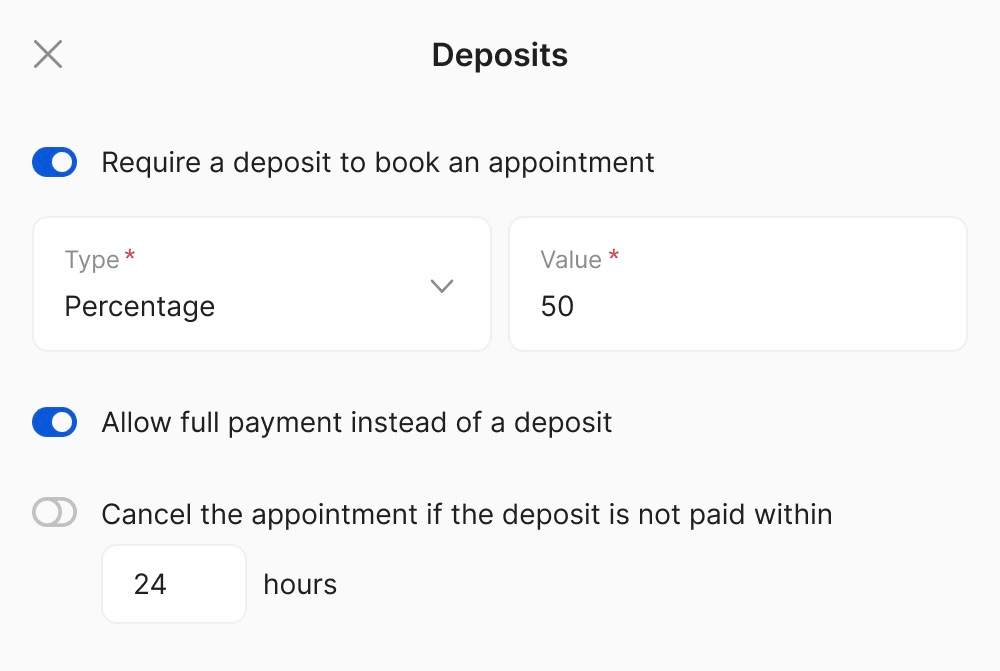
From here, after enabling booking protection, you can choose the type of deposit (percentage or fixed amount), set its value, decide whether to allow the full payment instead of a deposit, and specify how much time clients have to pay before the appointment is cancelled.
4. How can I activate the card on file function?
For card on file, go to Settings, Bookings, Booking Policy, and click on Edit again. From here, enable booking protection, navigate to Card on File, and choose the percentage or fixed amount you want to deduct from the total value of the appointment:
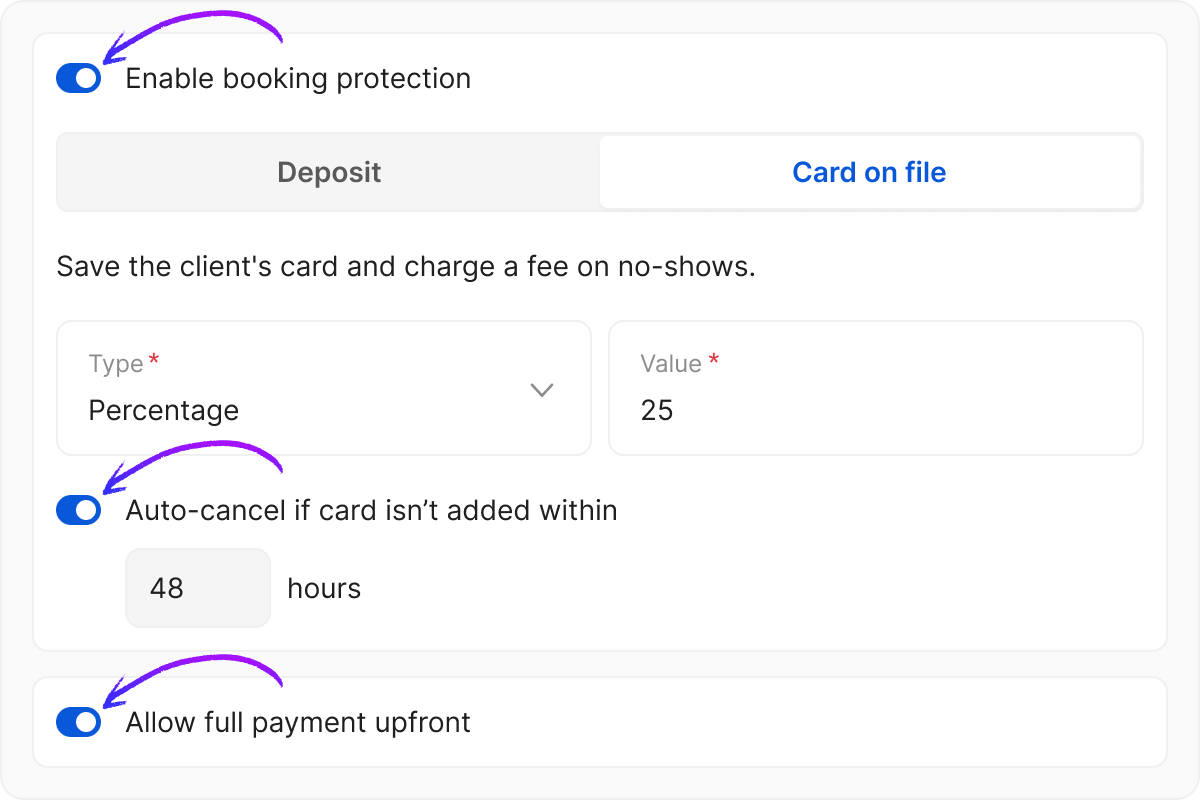
You can also enable automatic appointment cancellation if the client doesn’t add their card details within a set number of hours after scheduling!
5. How does the card on file feature work?
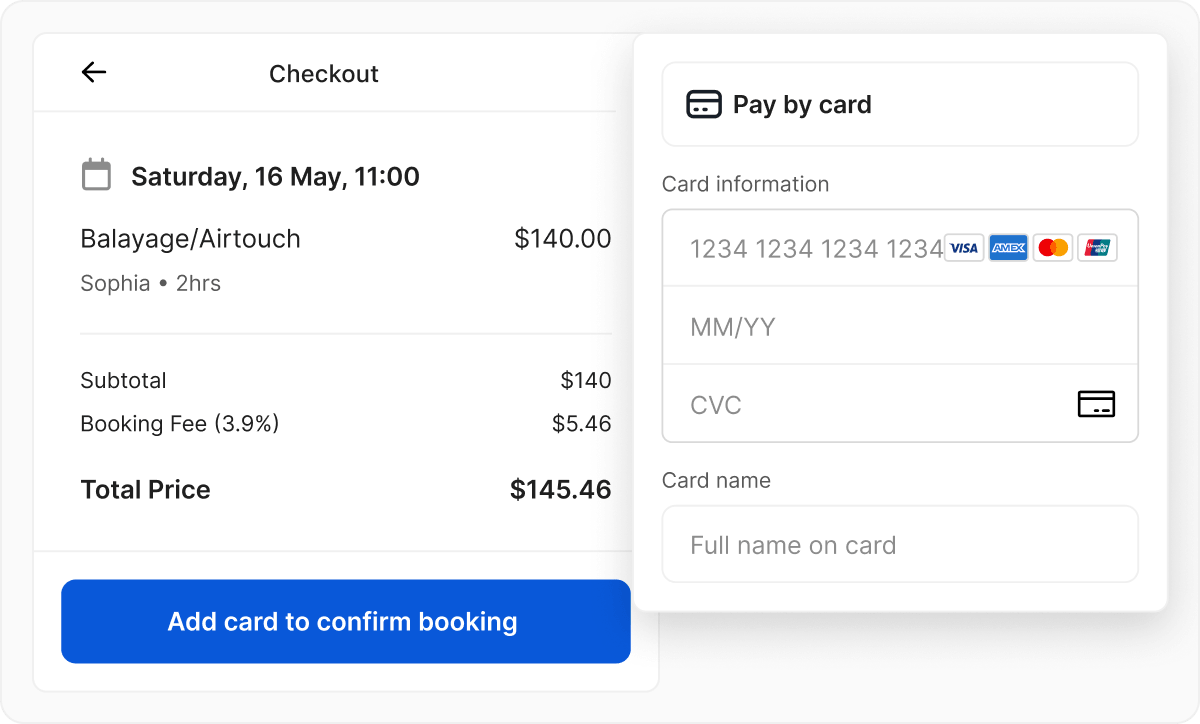
Upon setting up the appointment, salon clients will be asked to add their card details:
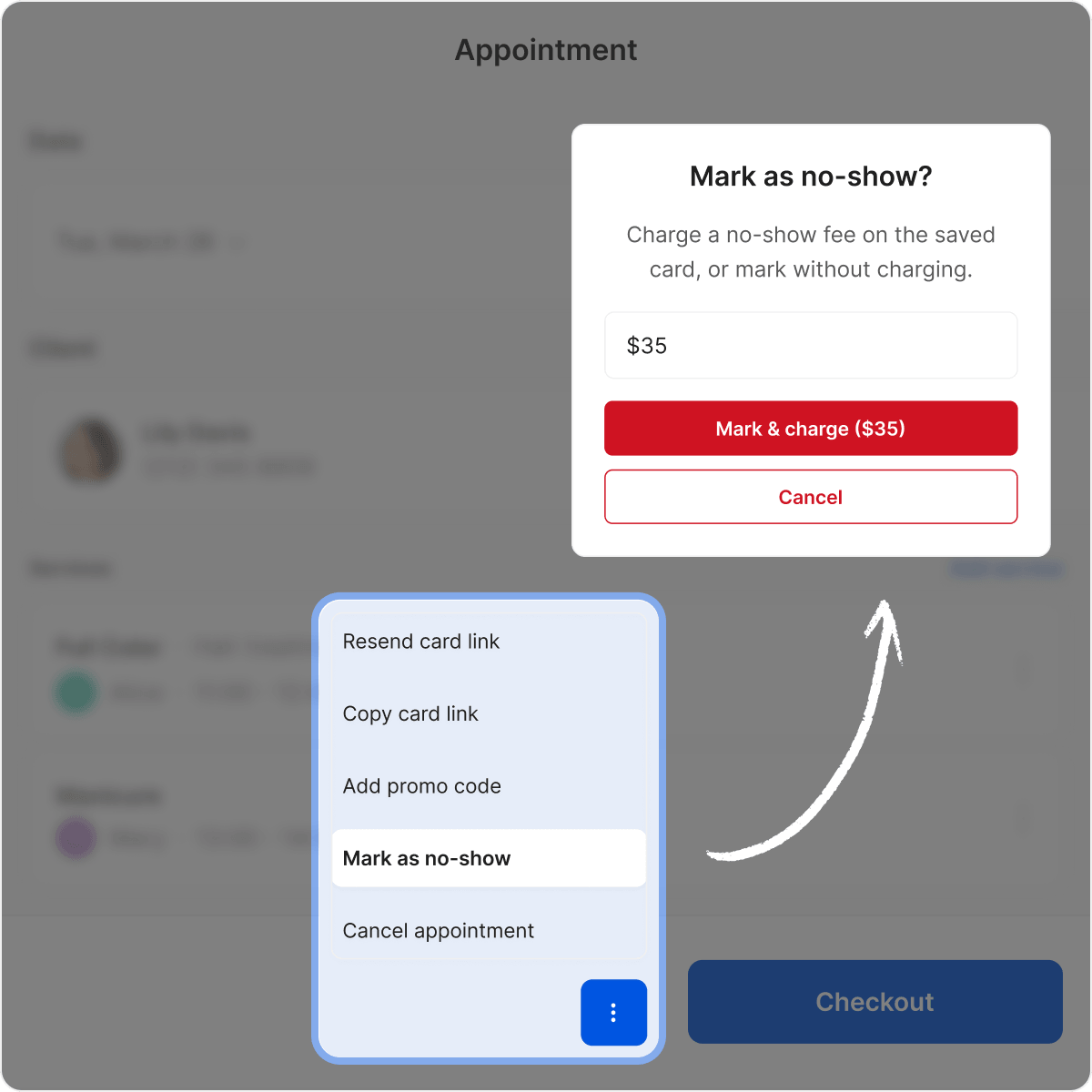
If they don’t show up, you can mark them as no-shows and charge the no-show fee:
6. Does having a card on file make the checkout process easier?
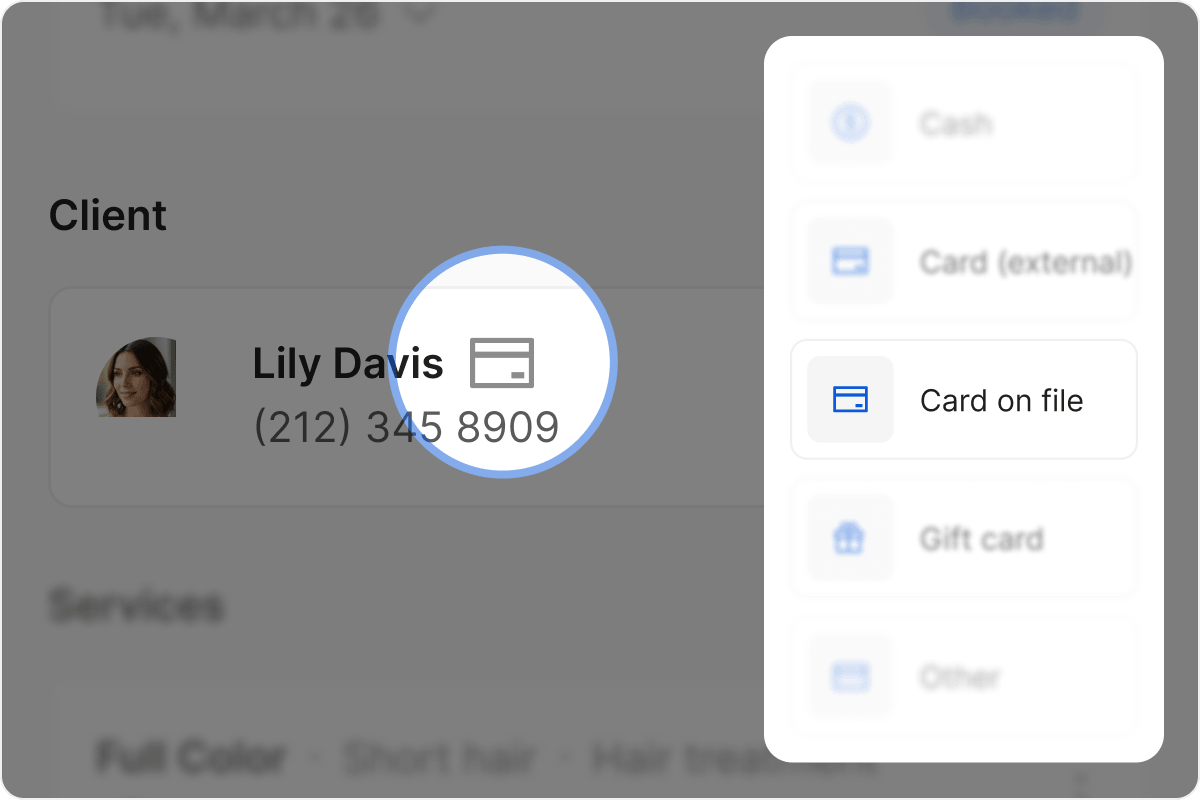
Yes! When a client has a card on file, a credit card icon appears next to their name, making the checkout process faster and simpler:
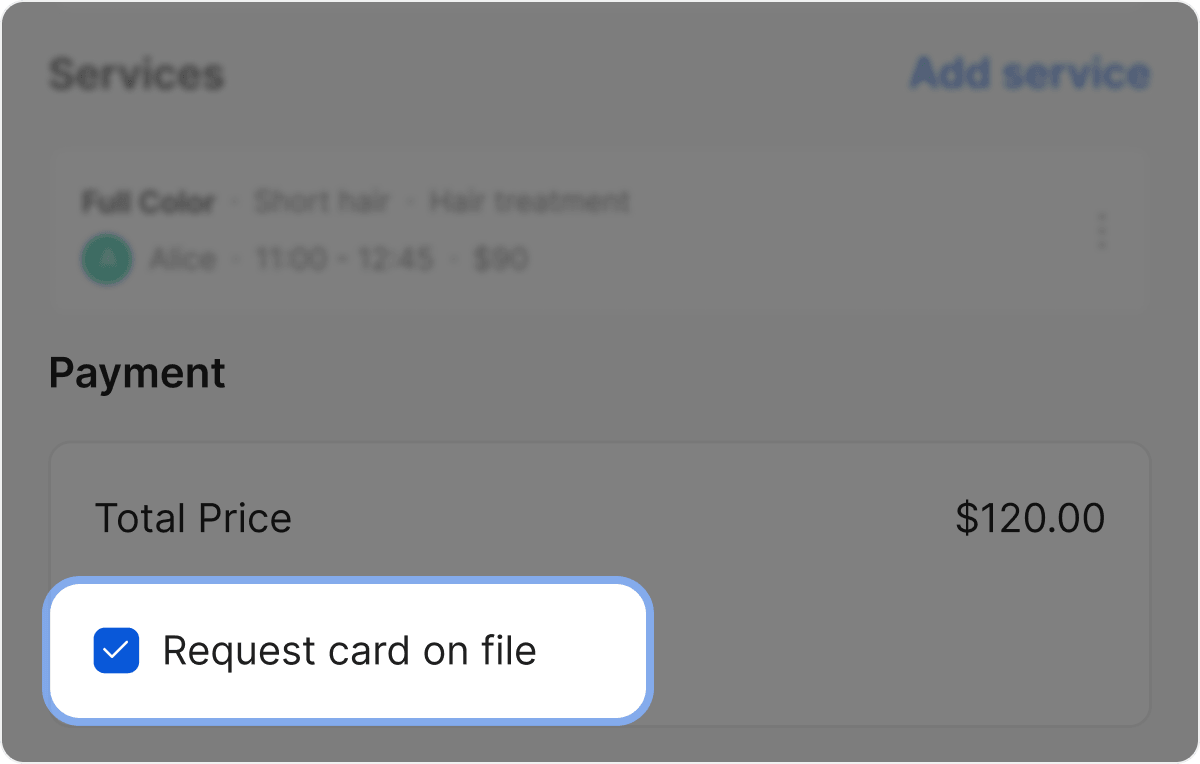
You can request a card on file for every appointment like this:
7. Who do I contact for issues with deposits and card on file?
For any issues related to deposits or card on file, you can always contact our support team via live chat. They’ll be able to help resolve the problem in no time!
Send your details - we do the rest!
We offer all you need for a thriving salon: website & logo creation, instant profile setup, 1:1 staff training payment system integration, intuitive appointment management, and more!
Start Now
TimeTailor’s salon appointment software is an all-in-one salon online booking system for freelancers and small business owners. We also optimize or create a website for your salon. This POS system allows you to take deposits and manage payments.