Frequently Asked Questions About Salon Receipt Printing
Everything you need to know about the receipt printing option inside our salon booking software!
1. What printers are compatible with the TimeTailor salon receipt printing option?
Our salon payment system supports Epson and Star Micronics receipt printers, along with other generic ESC POS printers or any OS-installed printers. Beauty professionals who don’t want any extra hardware can also use our platofrm with an integrated Sunmi device.
2. Do I need Wi-Fi to print receipts?
Only for Sunmi devices! For generic printers, connection options include Ethernet, Wi-Fi, Bluetooth, and USB, depending on the machine and operating system.
3. Do I need a printer setup app?
For Epson and Star, the manufacturer's setup utility helps connect and configure your printer. Direct printing from our salon appointment app also requires Epson TM Print Assistant or Star PassPRNT. The Sunmi device is completely integrated and doesn’t need extra hardware.
Epson TM Utility


Epson TM Print Assistant
Star Quick Setup Utility
Star PassPRNT
4. How do I connect my Epson or Star printer to the salon booking system?
1. Connect your preferred printer
Power on your Epson or Star printer and connect it to your chosen device through Bluetooth, Wi-Fi, USB, or Ethernet!
2. Install the right printing app
The Epson printer works with Epson TM Utility and Epson TM Print Assistant. For Star, install Star Quick Setup Utility and Star PassPRNT.
3. Set your printer inside our salon appointment app
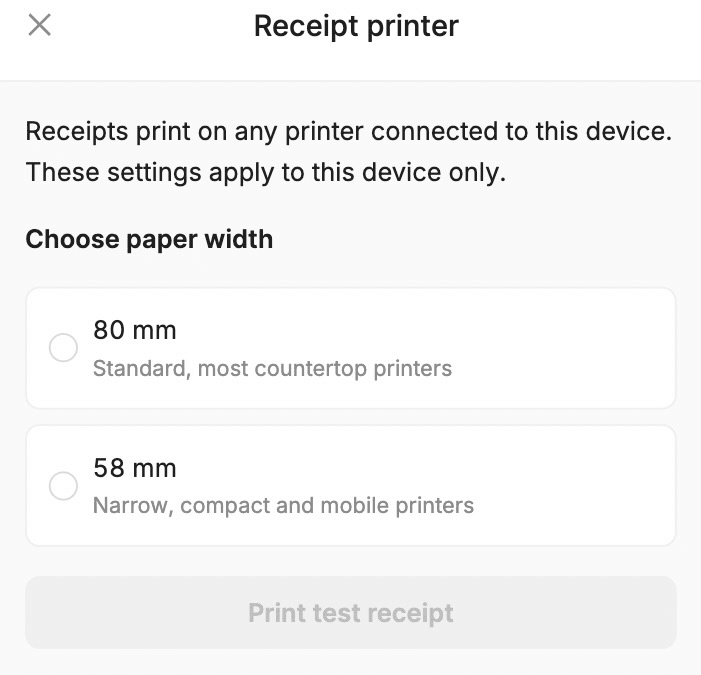
Go to Settings → Sales → Receipt printer, choose the paper width, and run a test print:
4. Start printing
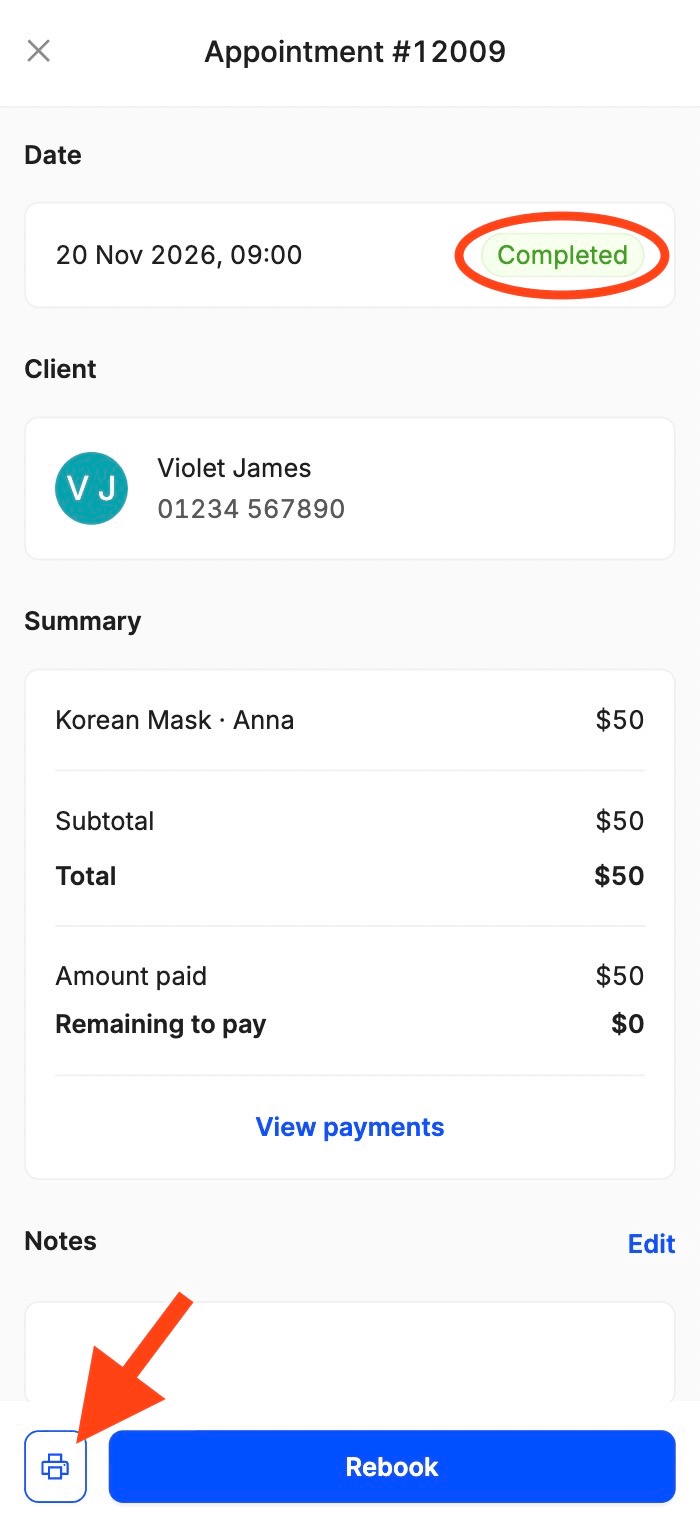
Open an existing appointment, complete the checkout, press Print, and hand the receipt to your client:
5. Which receipt paper size should I choose?
Our salon software provides 58 mm and 80 mm receipt layouts, so you can select the width supported by your printer.
6. Do I need to check anything before purchasing my Sunmi device?
Yes!
1. The Sunmi device needs to be a V3 or V3H model with Android 13+, NFC, Google Mobile Services (GMS), and an integrated 58 mm printer.
2. Make sure it’s a model that continues to receive security updates.
3. Ensure the exact model has NFC and GMS support in your region. For Europe, it needs to be a P06100033 model. For the US, P06100004.
7. How do I configure my Sunmi device after purchasing it?
1. Download the TimeTailor salon management app and set it up on your new device:
2. Create an account or log in if you’re already a user.
3. Configure your printer preferences:
After the app is installed on your Sunmi device, set up your printing preferences inside Settings → Sales → Receipt printer:
4. Start printing
Once everything’s set up, you can start using your new integrated device to print receipts.
8. Does the Sunmi device require ink or toner?
No! Sunmi devices with built-in thermal printers use thermal printing technology, so no additional equipment is required to print receipts.
9. Can I print receipts without purchasing a separate printer?
Yes, you can use a compatible Sunmi device! This is an all-in-one solution that combines appointment management, contactless payments, and receipt printing without a separate printer.
10. Can I accept contactless payments and print receipts if I’m not working in-salon?
Yes! A compatible Sunmi device works through the TimeTailor salon booking app, so you can complete payments and offer receipts regardless of your location.
11. Can I print receipts in different languages?
Of course! The language displayed on the receipts depends on your account configuration and the language selected inside our salon management software. If you would like your receipts to be printed in a specific language, make sure you adjusted your account settings accordingly.
12. Why is my salon receipt printer not printing?
First, check that your printer is powered on, has enough paper, and is connected to your device. Also verify that the correct utility app is installed and that your receipt printer settings are configured correctly inside TimeTailor.
If you still have issues, message us through the 24/7 live chat, and someone from our team will resolve it in no time!
Send your details - we do the rest!
We offer all you need for a thriving salon: website & logo creation, instant profile setup, 1:1 staff training payment system integration, intuitive appointment management, and more!
Start Now
TimeTailor’s salon appointment software is an all-in-one salon online booking system for freelancers and small business owners. We also optimize or create a website for your salon. This POS system allows you to take deposits and manage payments.